This guide shows how to let Claude create and change records in Odoo 20 through Odoo's MCP server, and what it still cannot do once you have. Out of the box the MCP server is read-only: Claude can search your data and build reports, but it cannot change anything. Switching on three Server Actions changes that. The steps were verified on Odoo 20 Enterprise and are written for the administrator who looks after the database.
Download the checklist (PDF) to keep every setting from this guide on one sheet.
Before you start
- Version and plan: Odoo 20 Enterprise on the Custom plan. Odoo's pricing page lists External API and agentic AI only under the Custom plan, and an outside AI assistant reading and writing your data fits Odoo's definition of external API use.
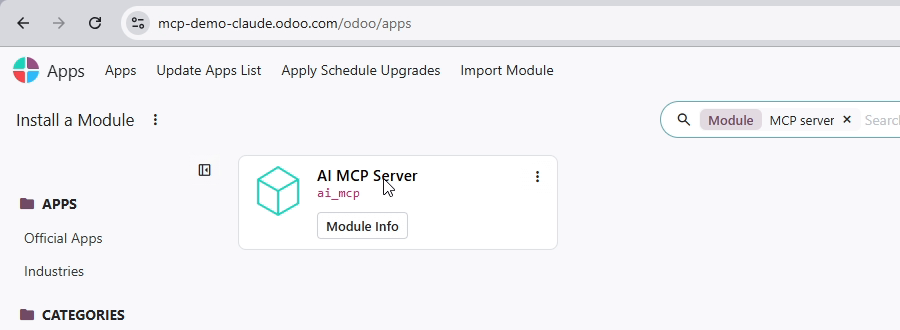
- App: the AI MCP Server module. It installs automatically with Odoo's AI features. To check, open the Apps app, remove the Apps filter and search for "MCP server".
- Claude plan: Claude's free plan allows one custom connector. The paid plans allow more.
- Access rights: the Administrator role in Settings, to change Server Actions.
- Developer mode: open the Settings app, scroll to Developer Tools and click Activate the developer mode. The Technical menu used below only appears in developer mode.
- Terms used: MCP (Model Context Protocol) is an open standard that lets an AI assistant use tools in another system. A Server Action is an Odoo record that defines an action Odoo can run. Odoo 20 treats Server Actions marked for AI as the list of tools an AI assistant is allowed to use.
Connect Claude to your database
- In Odoo, copy your database address from the browser bar, for example https://yourcompany.odoo.com/odoo.
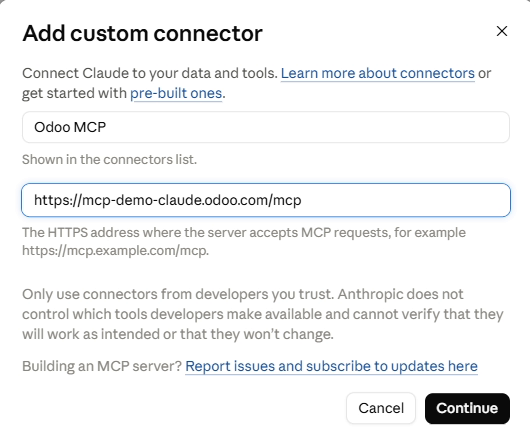
- In Claude, add a custom connector. In the browser and in the desktop app this is under Connectors. Give it a name such as Odoo MCP.
- Paste the address and replace /odoo at the end with /mcp, so it reads https://yourcompany.odoo.com/mcp. Click Continue, keep the sign-in option Claude detects, and click Add.
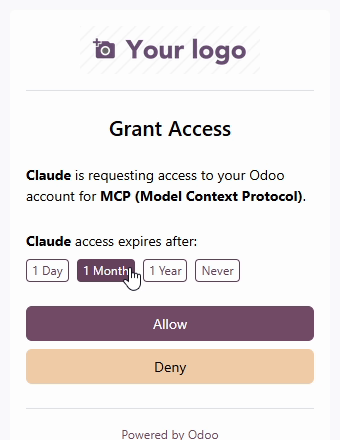
- Odoo opens a Grant Access page. Choose how long Claude may use your account: 1 Day, 1 Month, 1 Year or Never. Never is only offered to administrators. Click Allow.
Claude Code, in the terminal or in VS Code, connects the same way: add an HTTP server with the same /mcp address, then approve the same Grant Access page.
Why Claude can only read at first
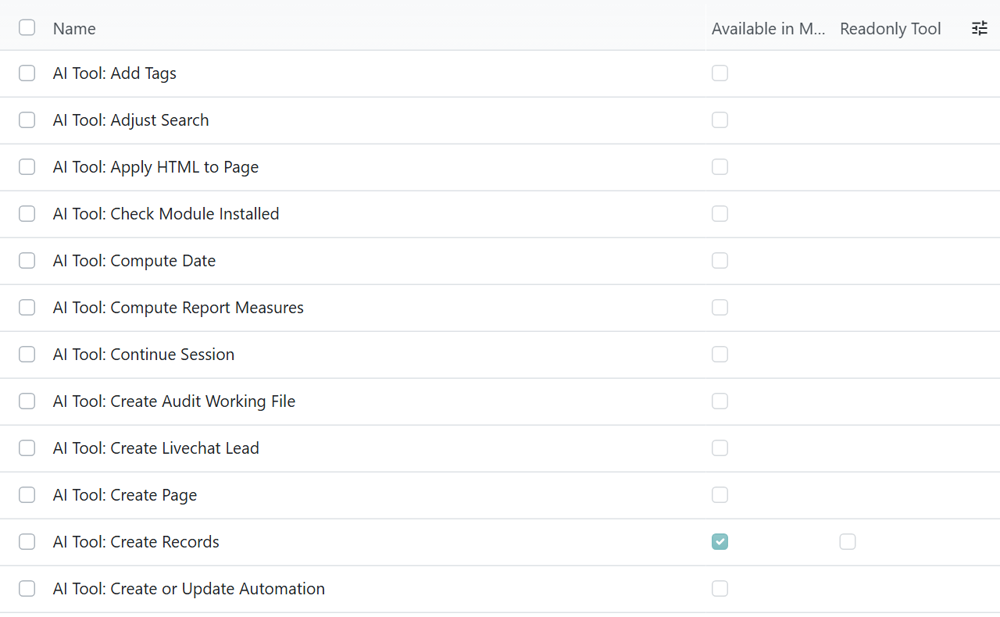
Every Server Action that has Available in MCP ticked becomes a tool Claude can call. Installing AI MCP Server switches on five, and all five only read:
- AI Tool: MCP Retrieve initial context, which tells Claude who you are, your timezone and your companies.
- AI Tool: Get Models and AI Tool: Get Fields, which describe the kinds of records in your database.
- AI Tool: Search, which finds and reads records.
- AI Tool: Read group, which totals and groups records, for example sales by product category.
So a request such as "set up a price list for this product" fails even when the access you granted would allow it. Claude has no tool that writes.
Let Claude make changes
- Open the Settings app, then go to Technical, Actions, Server Actions.
- Search for AI Tool: Create Records and open it.
- Click the Usage tab. Use in AI is already ticked on this Server Action.
- Tick Available in MCP. A Readonly Tool box appears next to it. Leave it unticked: it tells Claude whether a tool only reads.
- Save.
- Repeat for AI Tool: Update Records and AI Tool: Get Menus.
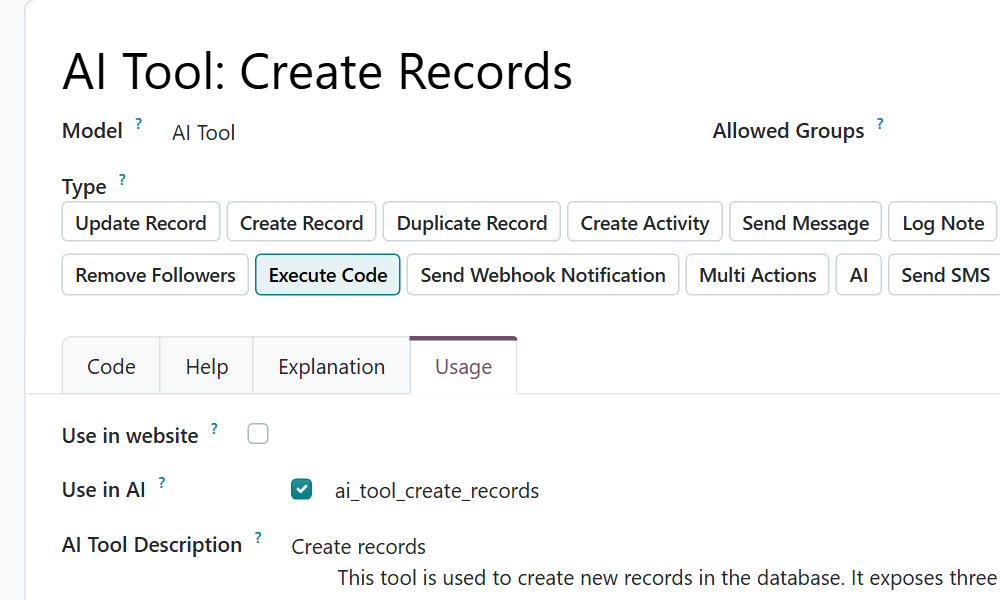
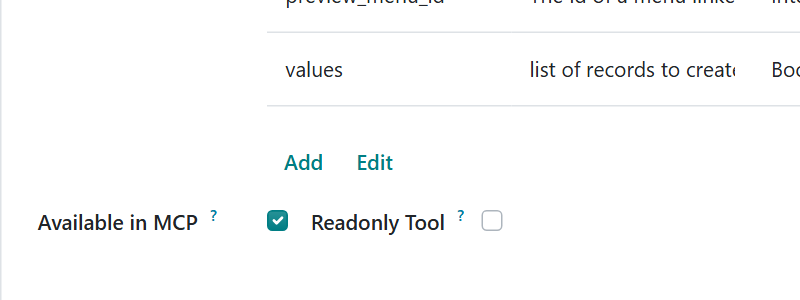
What each one adds: Create Records lets Claude create records such as products, price lists and customers. Update Records lets it change existing records, such as a price. Get Menus lets it look up where a record or setting lives in Odoo, which helps it pick the right place. If Claude still says it cannot make changes, start a new conversation or reconnect the connector so it reloads its list of tools.
Check that it worked
Ask Claude to create a test product, for example "Create a product called MCP test chair with a sales price of 95". Then open the Sales app, go to Products and search for MCP test chair. The product is there with the price you asked for. Ask Claude to archive it afterwards, or archive it yourself.
What Claude still cannot do
These limits were tested on Odoo 20 with the three Server Actions switched on:
- Options on the Settings page. Claude reports success, but the option is not applied, because nothing presses Save on the settings form. Change settings in Odoo yourself and check them after any request that touches them.
- Buttons such as Confirm on a quotation, Validate or Post. There is no tool for buttons, and status fields are read-only, so Claude cannot confirm, validate or post.
- Installing apps. Odoo blocks AI tools from the Apps list.
- Deleting. There is no delete tool. Claude can archive a record, not delete it.
- Automations. AI Tool: Create or Update Automation fails over MCP in Odoo 20 because it needs a session of Odoo's own AI, which an outside assistant does not have. Build automation rules in Odoo itself.
- Odoo's own chat tools. The Open Menu, Adjust Search and Ask User Question tools only drive the AI chat window inside Odoo, so switching them on does nothing for Claude.
Keep changes under control
- Changes made through MCP are applied straight away. Odoo's own AI chat asks you to confirm a change first; an outside assistant gets no such step.
- Claude acts with the access rights of the Odoo user who granted access. Grant access from a user whose rights match what you want Claude to do.
- Access ends when the period you chose on the Grant Access page runs out. A shorter period means fewer long-lived keys to your database.
- Try your first requests on a test or duplicate database before you point Claude at live data.
Steps verified on Odoo 20. Menus and labels can differ on other versions.
Common questions
Why can Claude read my Odoo data but not change it?
The AI MCP Server module only switches on read-only tools. Claude can create and update records once AI Tool: Create Records and AI Tool: Update Records have Available in MCP ticked under Settings, Technical, Server Actions.
Which Odoo plan do I need to connect Claude through MCP?
Odoo 20 Enterprise on the Custom plan. Odoo's pricing page lists External API and agentic AI only under the Custom plan.
Can Claude change settings or confirm orders in Odoo 20?
No. Options on the Settings page are not applied even when Claude reports success, and there is no tool for buttons such as Confirm, Validate or Post. Make those changes in Odoo yourself.
Does Odoo ask me to confirm changes Claude makes through MCP?
No. Changes made through MCP are applied straight away. Odoo's own AI chat asks for confirmation first, but an outside assistant does not get that step, so start on a test database.
Talk to the team.
If you are setting this up, or Odoo is not behaving the way this guide describes, book a 30-minute call. We will look at your configuration and tell you what it needs. Calgary studio, in-house team, no offshore handoffs.
Book the call →