This guide shows how to stop the Customer field on a quotation from offering every contact in your database, so that a list of thousands of people and addresses only offers the businesses you sell to. The short answer: give those businesses a contact tag, then use Studio to add a filter rule to the Customer field so it only offers contacts with that tag. Pricelists need no such filter, because the pricelist form has no customer field. A pricelist reaches a customer through the contact record or through its country.
It is for sales managers and administrators. The steps were verified on Odoo 20, with notes where Odoo 19 differs.
Before you start
- Version and edition: Odoo 20. Tagging contacts works in every edition. Restricting the field uses Studio, which is part of Odoo Enterprise. Odoo's documentation notes that installing Studio on a database on the Standard pricing plan moves it to the Custom plan. Without Studio, limiting the field itself needs customization.
- Apps: Sales and Contacts.
- Access rights: the Studio button is only shown to users with administrator access to Settings. Creating tags and editing contacts in bulk needs the Contact right set to Creation, or an app role that grants contact editing.
- For the pricelist steps: open the Sales app, go to Configuration > Settings, and turn on Pricelists in the Pricing section.
- Terms used: a tag is a label you attach to contacts to group them. A domain is a filter rule that limits which records a field offers. A pricelist is a set of prices or discounts for a group of customers. A country group is a named list of countries.
What the Customer field already does
You search the Customer field rather than scroll it. Type part of a name and Odoo shows the first few matches. On a quotation, contacts with more posted customer invoices and credit notes are listed ahead of the others, so regular customers tend to come up first.
At the bottom of the matches, Search more... opens the full contact list in a window with the usual filters. The Customer Invoices filter there keeps only contacts Odoo has recorded as customers, mainly through posted invoices, and typing a tag name lets you search by tag. This narrows one search, but it does not change what the field offers next time.
Why Is a Company is a weak filter
A filter on Is a Company looks like the obvious choice, but in Odoo 20 that flag is calculated and read-only. A contact counts as a company only when it has no parent company and its tax ID holds a real number. A business without a tax ID, or with a placeholder such as "/", never qualifies, so a filter on the flag would hide it. A tag is a marker you control.
In Odoo 19, Is a Company is a choice you make on the contact form, and the Search more window has a Companies filter. A rule on that flag works there, provided every business is set as a company.
Step 1: tag the contacts you sell to
- Open the Contacts app and switch to the list view.
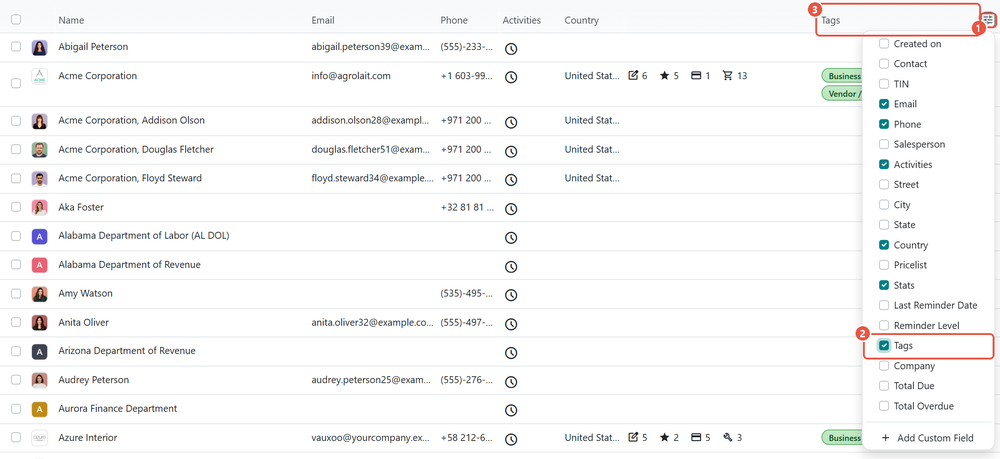
- Click the column options at the right end of the list header and tick Tags. A Tags column appears.
- Filter or search the list down to your business contacts, then tick the box on each row you want, or the box in the header to select all of them.
- Click the Tags cell on one of the selected rows, type a tag name such as Business, and create or pick it.
- Odoo asks you to confirm the change for all selected records. Confirm it. The tag is added to every selected contact, and the tags they already had stay in place.
Step 2: limit the field with Studio
- Open the Sales app, go to Orders > Quotations, and open any quotation.
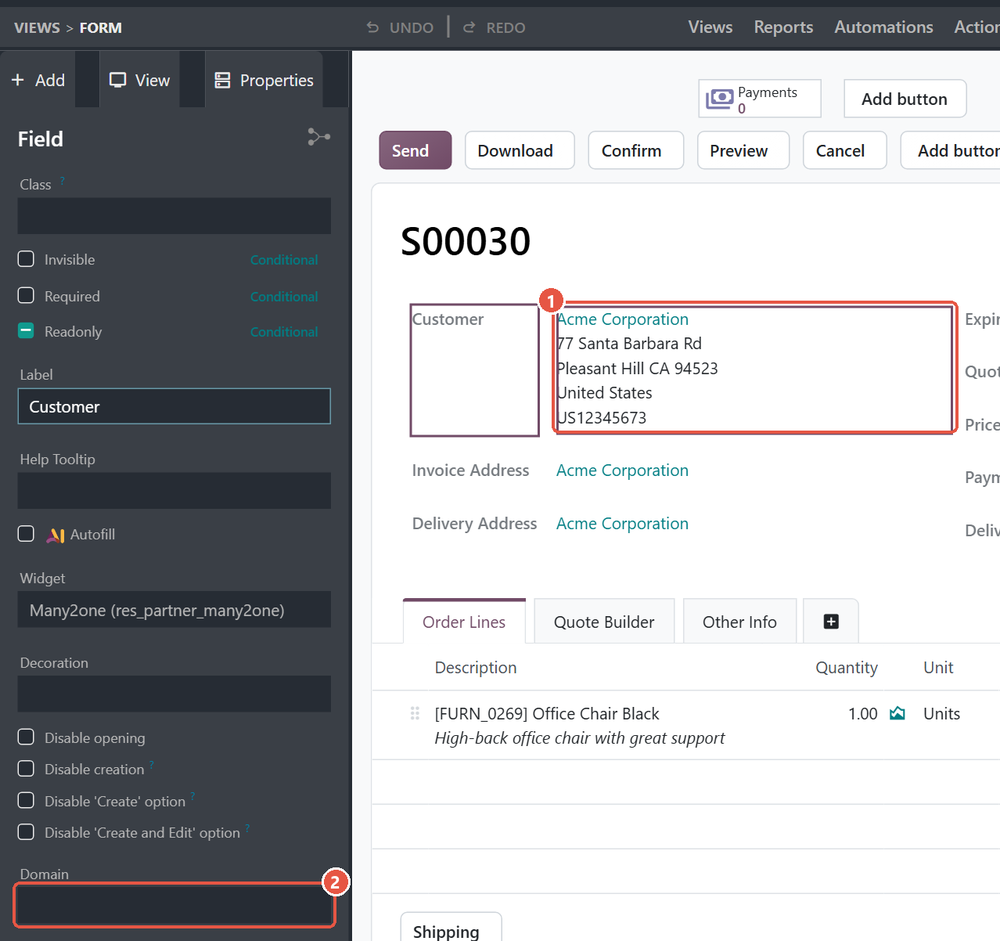
- Click the Toggle Studio icon in the top bar. The form opens in the Studio editor.
- Click the Customer field. Its properties appear in the side panel.
- Open the Domain property and build a rule on the Tags field that picks your Business tag.
- Click Close at the top right to leave Studio.

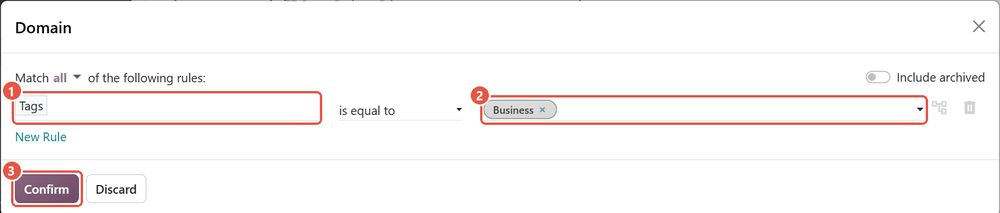
From then on, the Customer field on that form only offers contacts carrying the tag, in the dropdown and in Search more. Quotations and sales orders share this form, so both are covered. Customer fields elsewhere, such as on invoices, are not affected.
Give customers a pricelist without a dropdown
In both Odoo 19 and Odoo 20 the pricelist form has no customer field. A customer gets a pricelist in one of two ways:
- Per contact: open the contact, go to the Sales & Purchase tab, and set Pricelist in the Sales section.
- By country: open the Sales app, go to Products > Pricelists, open a pricelist, and fill in Country Groups. Customers in those countries then receive it, unless their contact has a pricelist set by hand. If several pricelists cover the same country, Odoo uses the first one in the list order.
Check that it worked
- Open the Sales app, go to Orders > Quotations, and click New.
- In the Customer field, type the name of a contact you did not tag. It should not appear.
- Type the name of a tagged business. It should appear, and selecting it should work as before.
- For pricelists, open a contact in a country covered by a country group and look at the Pricelist field. A pricelist Odoo picked for the contact is shown in grey, while one set by hand is shown in normal text.
Common mistakes to check first
- New contacts without the tag. A business only appears once it carries the tag, so make tagging part of creating a customer.
- People under a business. Tags are not copied from a company to the people listed under it, so a person you quote directly needs the tag too.
- Filtering on the tax ID. In Odoo 20 a rule on Is a Company drops every business without a real tax number.
Steps verified on Odoo 20. Menus and labels can differ on other versions.
Common questions
How do I limit the Customer dropdown on Odoo quotations?
Tag the contacts you sell to, then open a quotation in Studio, click the Customer field and set its Domain to contacts carrying that tag. Studio is part of Odoo Enterprise.
Can I filter the Customer field on Is a Company in Odoo 20?
You can, but it hides businesses without a real tax number. In Odoo 20 Is a Company is calculated from the tax ID and the absence of a parent company, so a tag you control is a more reliable filter.
How do I assign a pricelist to a customer in Odoo?
On the contact's Sales & Purchase tab, choose one in the Pricelist field. To cover a whole region at once, fill in Country Groups on the pricelist instead.
Why are some customers listed first in the Odoo Customer field?
On quotations, Odoo sorts contacts by how many customer invoices have been posted for them. Contacts you invoice often appear near the top of the matches.
Talk to the team.
If you are setting this up, or Odoo is not behaving the way this guide describes, book a 30-minute call. We will look at your configuration and tell you what it needs. Calgary studio, in-house team, no offshore handoffs.
Book the call →