This guide helps you plan where a self-hosted Odoo keeps its files, how to back it up and how to prove the backup works, before you buy the server. The short answer: Odoo stores your records in a PostgreSQL database and your uploaded files in a separate folder on disk, and a backup is only usable when it holds both from the same moment. Odoo's own cloud storage sends large attachments to Microsoft Azure or Google Cloud only, and those files then sit outside your backup. Odoo does not schedule backups on a server you run yourself.
It is written for owners and IT leads planning an on-premise installation, meaning Odoo on a server that you or your hosting provider manage. Software behaviour was checked in the Odoo 19 and 20 source code, and Odoo's documentation was checked on 27 October 2026.
Before you start
- Version and hosting: Odoo 19 or 20, Community or Enterprise, on your own server. On Odoo Online and Odoo.sh, Odoo runs the servers, so this guide does not apply there.
- Server access: someone who can log in to the server, schedule jobs and edit the Odoo configuration file. Most of what follows happens there, not in the Odoo screens.
- Two numbers from the business: how many hours of work you could afford to enter again after a failure, and how many hours you could run without Odoo.
- Terms: the database is the PostgreSQL database that holds every record. The filestore is the folder on the server's disk where Odoo keeps uploaded files, images and generated PDFs, one folder per database. The chatter is the panel of messages and attachments beside most records. A neutralized copy is a restored database with outgoing email and scheduled jobs switched off, so it cannot act on live business.
Where Odoo keeps records and files
By default, a file attached in Odoo is written to the filestore under a name calculated from its contents, and the database stores only that name next to the attachment record. Each half is useless without the other. A database restored without its filestore shows records whose files will not open, and a filestore without its database is a folder of files with meaningless names.
Timing matters too. When an attachment is deleted, Odoo first marks its file, and a cleanup job that runs once a day removes marked files that no record points to any more. Copies of the database and the filestore taken hours apart can therefore disagree, with the database copy pointing to files that are missing from the filestore copy. Recommendation: take both in the same backup run, because a mismatch only shows up on the day you restore.
What Odoo's cloud storage does and does not do
Odoo 19 and 20 include a Cloud Storage module plus one connector each for Microsoft Azure and Google Cloud Storage, in both Community and Enterprise. Those are the only two providers. Neither version contains a connector for Amazon S3 or for S3-compatible services such as Cloudflare R2 or Wasabi, so using one of those would need custom development.
Once a provider is chosen in the Cloud Storage section of the Settings app, a file larger than the Minimum File Size (20 MB by default) that a user attaches in the chatter goes straight from the user's browser to your bucket, and Odoo keeps only a link to it. Downloads use links that expire after five minutes. In Odoo 20 you must also tick Upload Record Attachments, or no chatter attachment is sent to the cloud.
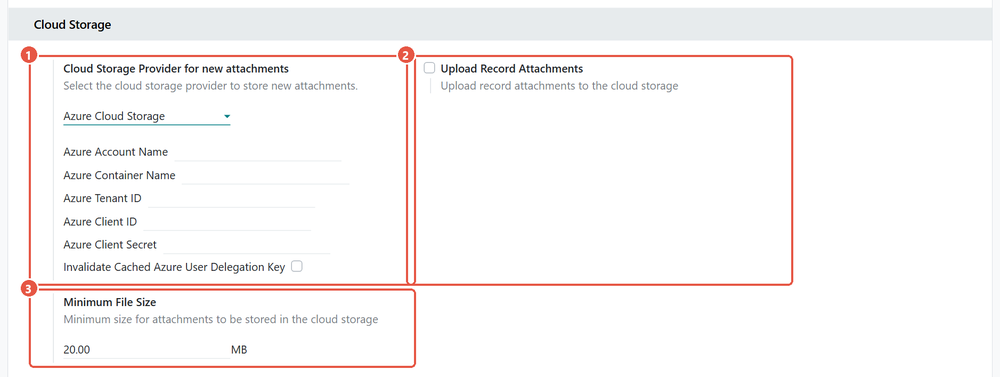
These files stay on your server even with cloud storage turned on:
- Files under the minimum size.
- Files Odoo generates, such as sales order PDFs, and files in the Documents and Sign apps, according to Odoo's documentation.
- Attachments on invoices, vendor bills, payments, expenses and job applicants, because Odoo reads those files in its own processes.
- Files uploaded before you turned the feature on, unless you install the separate Cloud Storage Migration module to move them.
The backup consequence is the part to plan for. A file in the bucket is in neither the database nor the filestore, so Odoo's backup does not contain it. The bucket becomes a third thing to protect, with its own versioning or retention set at the provider. Odoo also refuses to change the provider while attachments still live in its bucket. Recommendation: keep files on the server unless large files are what will fill your disk, because local storage keeps the backup to two parts that Odoo can bundle together.
Two ways to back up, and when each fits
Odoo has a manual backup in its database manager, the web page used to create, copy, back up and restore databases, and the same backup is available as a command on the server. Neither runs on a schedule. You schedule it with the server's own tools.
- The zip backup is the default. It holds the database, the whole filestore and a manifest listing the Odoo version and installed modules, which helps you match a restore to the right code. In Odoo 19 and 20 the backup form also has an Include filestore box, ticked by default; leave it ticked, because a zip made without it holds the database alone. It first copies the entire filestore into temporary space, so the server needs free disk at least the size of the filestore. Odoo's documentation also warns that the database manager is not designed for large databases and may hit memory limits.
- The database-only backup, listed as "pg_dump custom format (without filestore)", streams the database without the temporary copy. You then copy the filestore folder yourself in the same job, and keeping the two matched is your responsibility.
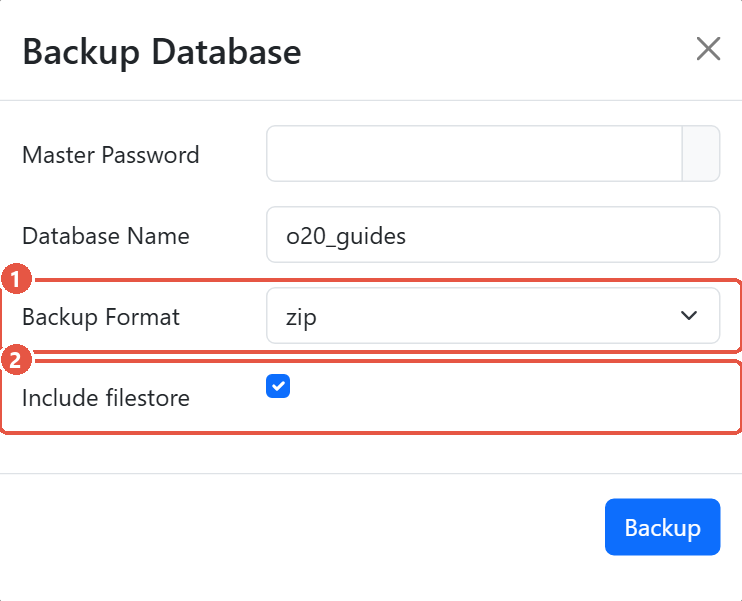
Recommendation: use the zip while it fits comfortably on disk, because it keeps both halves together, and move to the database-only backup plus a scheduled copy of the filestore folder when the temporary copy becomes a problem. Odoo's deployment documentation recommends daily backups of the databases and the filestore, copied to a remote server that the Odoo server itself has no access to.
The same documentation strongly recommends disabling the database manager on any server reachable from the internet. Set the list_db option to False in the Odoo configuration file, and set a strong master password, the password that protects every database manager action.
Test the restore before you need it
- Restore the latest backup on a separate server or under a different database name. In the database manager, click Restore Database. The server's restore command accepts the zip format only; a database-only backup is restored with PostgreSQL's own tools.
- Tick Neutralize on the restore form, or use the neutralize option of the command. The copy then has its mail servers archived and replaced by a fake one, incoming mail fetching stopped, scheduled actions off except the internal cleanup job, webhooks disabled, payment providers in test mode and the cloud storage connection removed. Without it, the copy can email real customers and run live scheduled jobs.
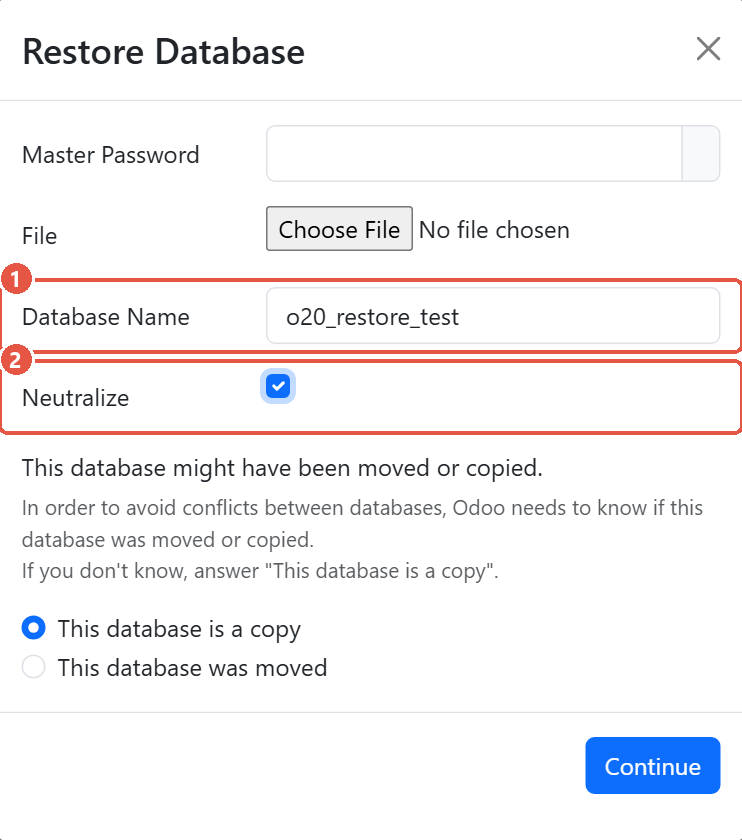
The Restore Database form. 1: a new name, so the copy sits beside the live database. 2: Neutralize, so the copy cannot email customers or run live scheduled jobs. - Open an old invoice PDF, a product image and a recent attachment. Each should open. A missing file means the database and filestore copies did not match.
- Note how long the restore took. That is your real recovery time, to compare with the hours the business said it could run without Odoo.
Questions to settle before buying hardware
- How big is the filestore today, and how fast does it grow? The Cloud Storage Migration module includes a report of attachment size by type of record, which shows where the space goes.
- Does the server have room for the zip's temporary copy as well as the finished backups?
- How often must backups run to stay within the hours of work you can afford to lose?
- Where does the off-site copy live, and who is able to delete it?
- Who holds the master password?
Check your plan against this list
- Each backup contains the database and the filestore from the same run.
- Backups run on a schedule you set up, and a copy leaves the server.
- Any cloud storage bucket has its own protection.
- A neutralized restore has been completed, timed and checked by opening real files.
- The database manager is disabled on any internet-facing server.
Steps verified on Odoo 19 and 20. Menus and labels can differ on other versions.
Common questions
Does Odoo support Amazon S3 for attachments?
Not in standard Odoo 19 or 20. The built-in Cloud Storage feature has connectors for Microsoft Azure and Google Cloud Storage only, so Amazon S3 or an S3-compatible service would need custom development.
Do I need to back up the Odoo filestore as well as the database?
Yes. Odoo keeps uploaded files in the filestore folder and stores only their names in the database, so a restore needs both, taken from the same moment. Odoo's zip backup bundles the two together.
Does self-hosted Odoo back itself up automatically?
No. Odoo offers a manual backup in the database manager and the same backup as a server command, but nothing in Odoo schedules it. You schedule it with the server's own tools.
Are cloud-stored attachments included in an Odoo backup?
No. A file sent to Azure or Google Cloud Storage is held in the bucket, with only a link in the database, so the bucket needs its own versioning or retention at the provider.
What does Neutralize do when restoring an Odoo database?
It makes the restored copy safe to test: mail servers are archived and replaced by a fake one, scheduled actions are switched off except the internal cleanup job, webhooks are disabled and payment providers are put in test mode.
Talk to the team.
If you are setting this up, or Odoo is not behaving the way this guide describes, book a 30-minute call. We will look at your configuration and tell you what it needs. Calgary studio, in-house team, no offshore handoffs.
Book the call →