This guide shows how to connect Odoo to ShipStation so that Odoo quotes a live shipping rate on a quotation and buys the shipping label when your team validates the delivery. The connector is an Odoo app called ShipStation Shipping, so there is no custom code and no outside connector to maintain. Each delivery method in Odoo is tied to one carrier and one service in your ShipStation account. The steps were verified on Odoo 20 Enterprise and are written for the person who sets up shipping.
Before you start
- Version and edition: Odoo 20 Enterprise. Odoo Online databases on version 19.4 also have the app. Odoo 19.0 does not, and the app is not part of Community.
- ShipStation plan: ShipStation's help centre says API access needs a Standard or Accelerate plan or higher, and only the account owner can create API keys.
- Apps: ShipStation Shipping. Installing it also installs Sales, Inventory and the delivery features it depends on.
- Access rights: the Administrator role. Only administrators see the API key field and the button that loads carriers from ShipStation.
- Product weights: every physical product you ship needs a Weight, set on the product form under the Inventory tab, in the Logistics section. When a product has none, Odoo shows an error instead of a rate.
- Terms used: a delivery method is Odoo's record for one way of shipping, with its price rules or carrier connection. A delivery order is the Inventory transfer that sends goods to a customer. A V2 API key is the password ShipStation issues so that another system can use your account.
Get your key from ShipStation
- Sign in to ShipStation as the account owner and go to Settings, Account, API Settings.
- Select V2 API in the version list and click Generate API Key. The first time, ShipStation emails a verification link; after you verify, generate again, choose an expiry of 3, 6 or 12 months and copy the key. ShipStation shows it only once.
- Go to Settings, Account, Shipping, Carriers and switch on each carrier you plan to use. Odoo loads its carrier list from your ShipStation account.
Odoo accepts V2 keys only; a V1 key is refused. ShipStation offers no sandbox key to ShipStation account holders, so the key you paste is always a live one.
Install the app
- Open the Apps app and search for ShipStation.
- Click Activate on ShipStation Shipping.
The install creates a delivery method called ShipStation, a ShipStation delivery product and a default package type called Package.

Create one delivery method per carrier and service
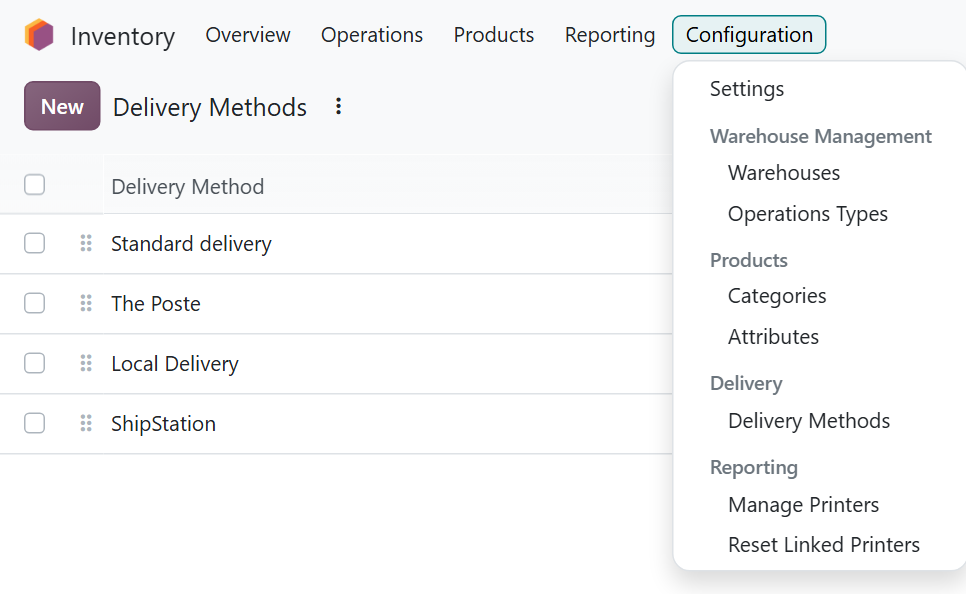
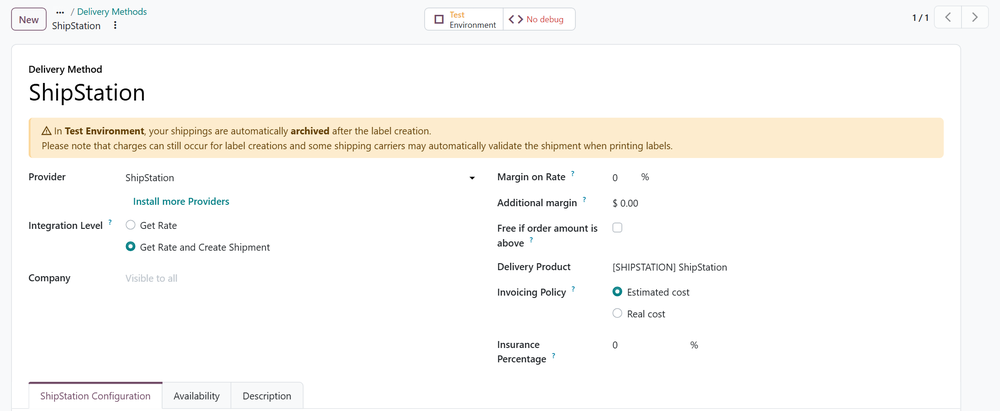
- Open the Inventory app, then go to Configuration, Delivery Methods. Open ShipStation, or click New.
- Give the method a name your sales team will recognise, such as UPS Ground. Set Provider to ShipStation.
- Leave Integration Level on Get Rate and Create Shipment. Get Rate only prices the shipment and never buys a label.
- Choose an Invoicing Policy. Estimated cost charges the customer the rate shown on the quotation. Real cost replaces it with the label's actual cost after the delivery is validated. Margin on Rate and Additional margin add your markup to either.
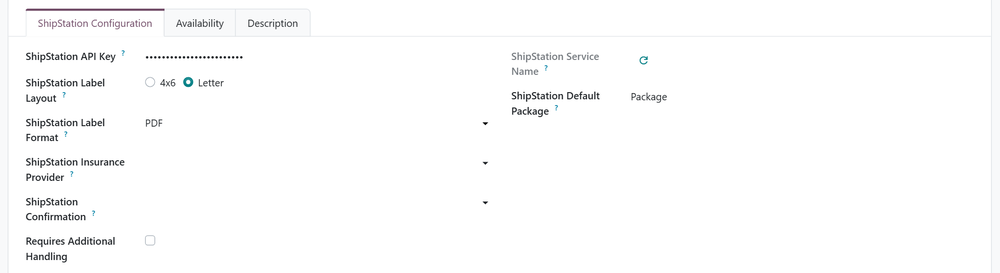
- On the ShipStation Configuration tab, paste the key into ShipStation API Key. Choose a ShipStation Label Layout (4x6 or Letter) and a ShipStation Label Format (PDF, PNG or ZPL). Letter works only with PDF. If you choose a ShipStation Insurance Provider, also set Insurance Percentage on the main form.
- Click the sync icon next to ShipStation Service Name. The ShipStation Carrier Selector lists the carriers in your ShipStation account, with tags showing which services are domestic, international, multi-package or support returns. Pick a carrier, then one service, and click Save. The service name now shows on the tab, and any package types that carrier offers are added to Odoo.
- Set ShipStation Default Package to a package type that suits the service. It needs a length, width and height, or Odoo stops with an error before asking ShipStation.
- Repeat for every carrier and service you sell. If you duplicate a method, Odoo clears the key and the service on the copy, so paste the key and sync again.
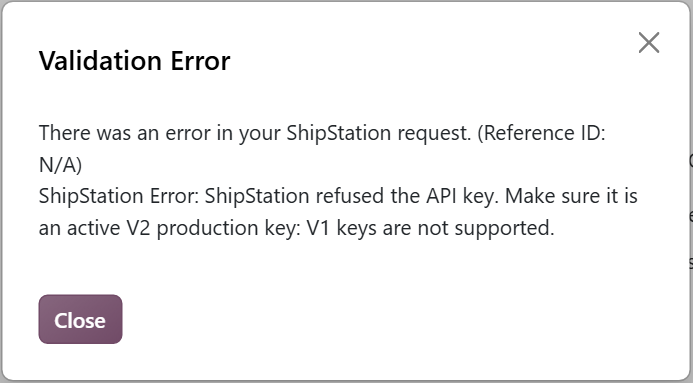
If ShipStation does not accept the key, the sync stops with the message below. Check that it is a V2 key, that it has not expired, and that your plan includes API access.
Test first, then go live
A new ShipStation delivery method starts in test mode, shown by the Test Environment button above the form. In test mode Odoo still buys each label with your live key and then voids it straight away. The warning on the form says charges can still occur, so test with a cheap service. Click Test Environment to switch the method to Production when you are ready.
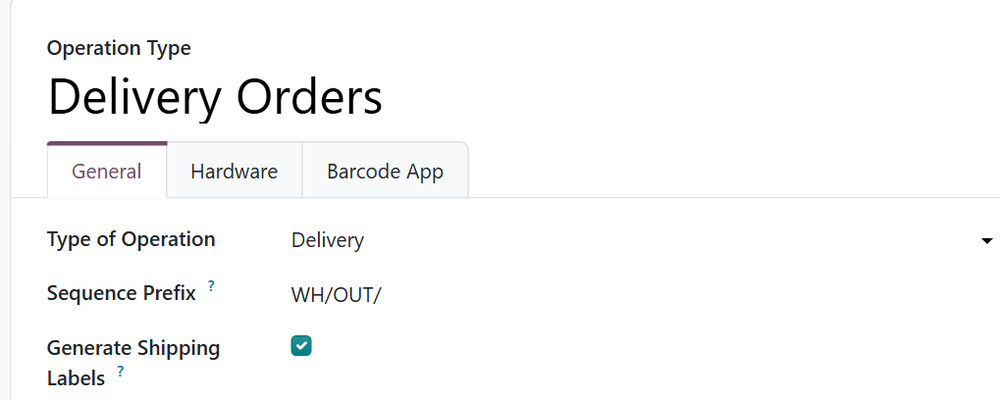
Labels are bought only on operation types with Generate Shipping Labels ticked. To check, go to Inventory, Configuration, Operations Types and open Delivery Orders. It is ticked by default on each warehouse's delivery operation type.
Ship an order
- In the Sales app, create a quotation and click Shipping below the order lines.
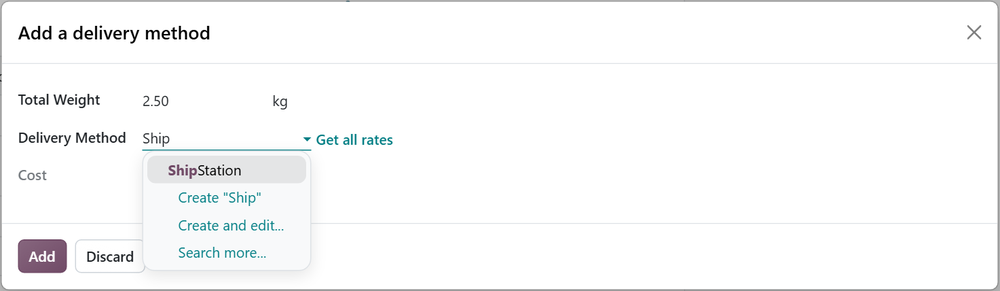
- In Add a delivery method, choose your ShipStation method. Odoo asks ShipStation for the rate and shows it as Cost. Get all rates prices every available method at once. Click Add to put the shipping line on the quotation.
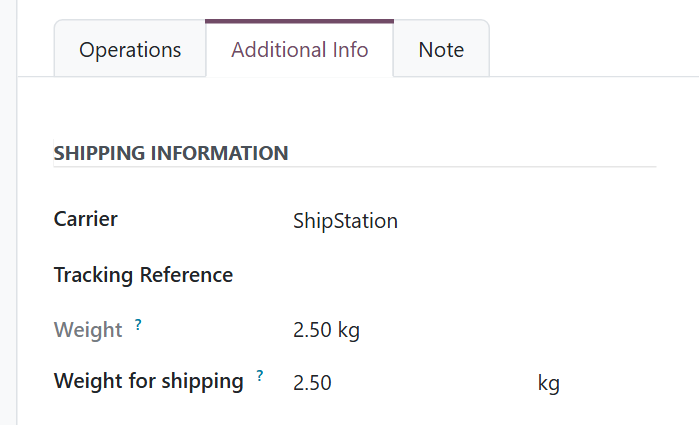
- Confirm the order. The delivery order shows the method as Carrier on its Additional Info tab.
- Validate the delivery order. Odoo sends the shipment to ShipStation, buys the label, fills in Tracking Reference and attaches the label file to the delivery order's chatter, the message log beside the form.
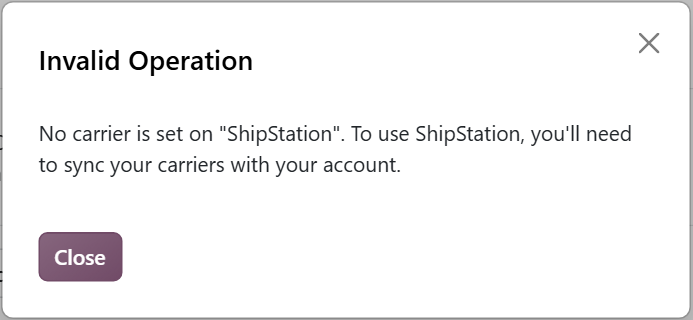
If ShipStation cannot create the label, Odoo shows the reason and does not validate the delivery order. A method that was never synced stops with this message, on the quotation and again at Validate.
Check that it worked
With the method still in test mode, create a quotation for a customer with a full address and a product that has a weight. In Add a delivery method, Cost shows a price rather than an error. Confirm the order and validate the delivery order. The chatter shows "Shipment created into ShipStation" with the tracking number and the label file, followed by a note that the shipment was cancelled because the method is not in production. Once the method is in Production, Tracking Reference keeps the number and a Tracking button opens the tracking link ShipStation returns.
Cancel and return labels
- Cancel a label: on a validated delivery order, open Additional Info and click Cancel next to Tracking Reference. Odoo asks ShipStation to void the label and clears the tracking number. Whether the label is refunded is decided by ShipStation and the carrier.
- Return labels: Generate Return Label appears on the ShipStation Configuration tab only when the synced service supports returns. When it is ticked, Odoo buys a return label together with the outgoing one, in Production only and only when the customer is in the same country as your warehouse. Return Label Accessible from Customer Portal then lets customers download it themselves. Odoo does not copy the carrier onto a return transfer, so to buy a return label later, set the ShipStation method as Carrier on the return's Additional Info tab, then click Print Return Label.
What the connector does not do
- Odoo does not send open orders to ShipStation for picking and packing. A shipment appears in ShipStation's Orders tab only after Odoo buys its label. If your team works from the ShipStation dashboard today, that work moves into Odoo's delivery orders.
- There is no stock sync. The connector only rates, buys, voids and returns labels and reads tracking links.
- Odoo sends addresses with ShipStation's address validation turned off, so correct customer addresses in Odoo before you validate.
- If the service does not support multi-package shipments, Odoo splits a delivery with several packages into separate shipments, one label each.
Steps verified on Odoo 20. Menus and labels can differ on other versions.
Common questions
Does Odoo have a native ShipStation integration?
Yes. Odoo 20 Enterprise includes the ShipStation Shipping app, and Odoo Online databases on version 19.4 have it too. Odoo 19.0 and Community do not include it.
Which ShipStation API key does Odoo need?
A V2 API key, generated in ShipStation under Settings, Account, API Settings by the account owner. Odoo refuses V1 keys, and ShipStation's help centre says API access needs a Standard or Accelerate plan or higher.
When does Odoo buy the ShipStation label?
When the delivery order is validated, provided the delivery method's Integration Level is Get Rate and Create Shipment and the operation type has Generate Shipping Labels ticked. The quotation only fetches a rate.
Does Odoo send open orders to ShipStation?
No. Odoo does not push orders for picking in ShipStation. A shipment appears in ShipStation's Orders tab once Odoo has bought its label.
Can I test the ShipStation connector without paying for labels?
Not entirely. In test mode Odoo buys each label with your live key and voids it straight away, and the form warns that charges can still occur, so test with a cheap service.
Talk to the team.
If you are setting this up, or Odoo is not behaving the way this guide describes, book a 30-minute call. We will look at your configuration and tell you what it needs. Calgary studio, in-house team, no offshore handoffs.
Book the call →