This guide shows how to change many records at once in an Odoo list, export them to a spreadsheet, and archive the ones you no longer use, with the product catalogue as the example. The short answer: tick the rows, change a value on one of the ticked rows, and confirm with Update to apply it to all of them. Export and Archive are in the Actions button that appears once rows are ticked. The steps were verified on Odoo 20.
Before you start
- Version and edition: Odoo 20, Community or Enterprise.
- App: the examples use the Sales app. The same list tools appear in other apps, but not every list allows editing in place.
- Access rights: open the user under Settings > Users & Companies > Users and look at the Master Data section of the Access Rights tab. Changing products needs Products set to Create, and exporting needs Export set to Allowed. The Administrator role includes both.
- Terms used: the list view is Odoo's table of records, one row per record. Archiving hides a record from everyday use without deleting it.
Edit a record without opening it
- Open the Sales app, go to Products > Products and click the list icon at the top right. The list opens with the Sales filter applied, which hides products that cannot be sold.
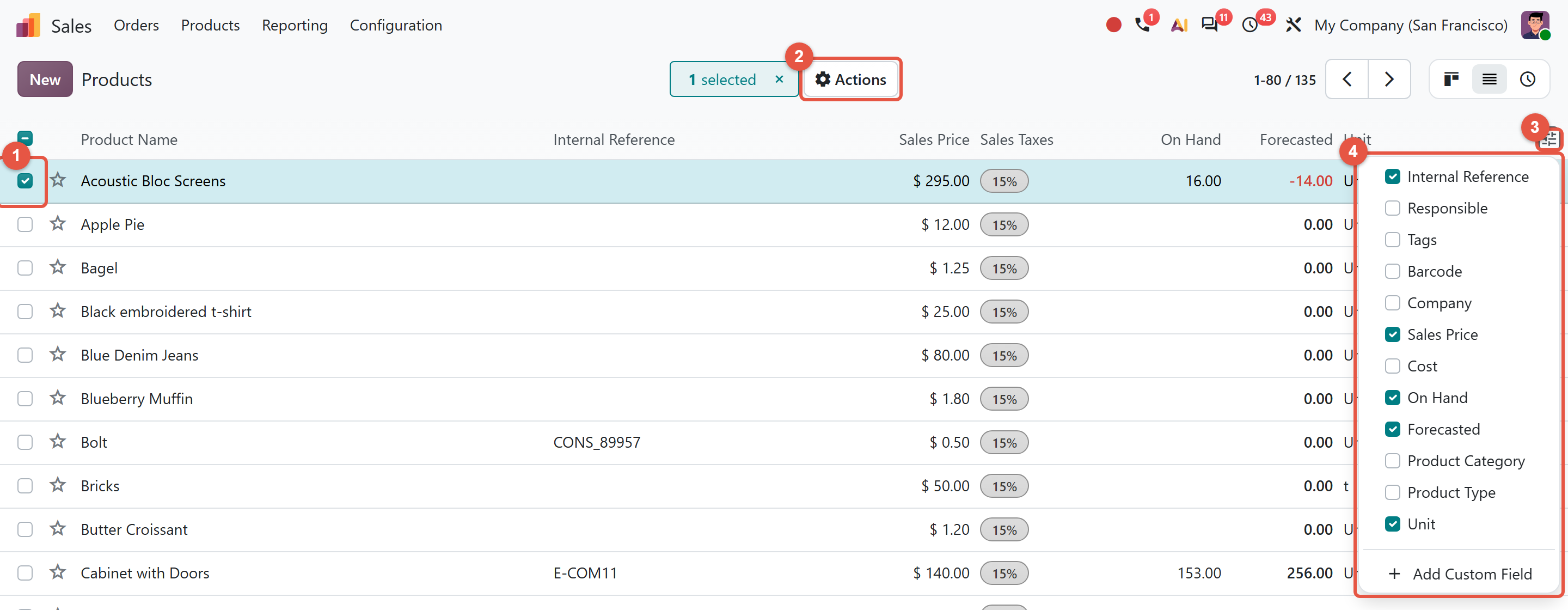
- Tick the checkbox at the start of a row.
- Click the cell you want to change, such as Product Name or Sales Price, and type the correction. Save and Discard buttons appear at the top left.
- Click Save.
With nothing ticked, clicking a row opens the full product form instead. Cost and On Hand are read-only in this list, so you can see them but not type into them.
Choose which columns appear
Click the sliders icon at the far right of the column headers. Tick a column such as Product Category or Cost to add it, and untick to remove it. Odoo remembers the choice in the browser where you made it, so each person keeps their own layout, and another computer needs its own setup.
Select the rows you want to change
- Group first if it helps. Open the toggle at the right end of the search bar and choose Product Category under Group By. Hold Alt and click any group header to open or close every group at once; a hint reading "Click to expand all groups" appears while you hold the key.
- Tick a range. Tick one row, hold Shift and tick another. Odoo selects every row in between.
- Tick everything on screen. The checkbox in the top-left corner of the list ticks every row currently shown.
Change many records at once
- With several rows ticked, click a cell on any ticked row and enter the new value, for example a different Product Category.
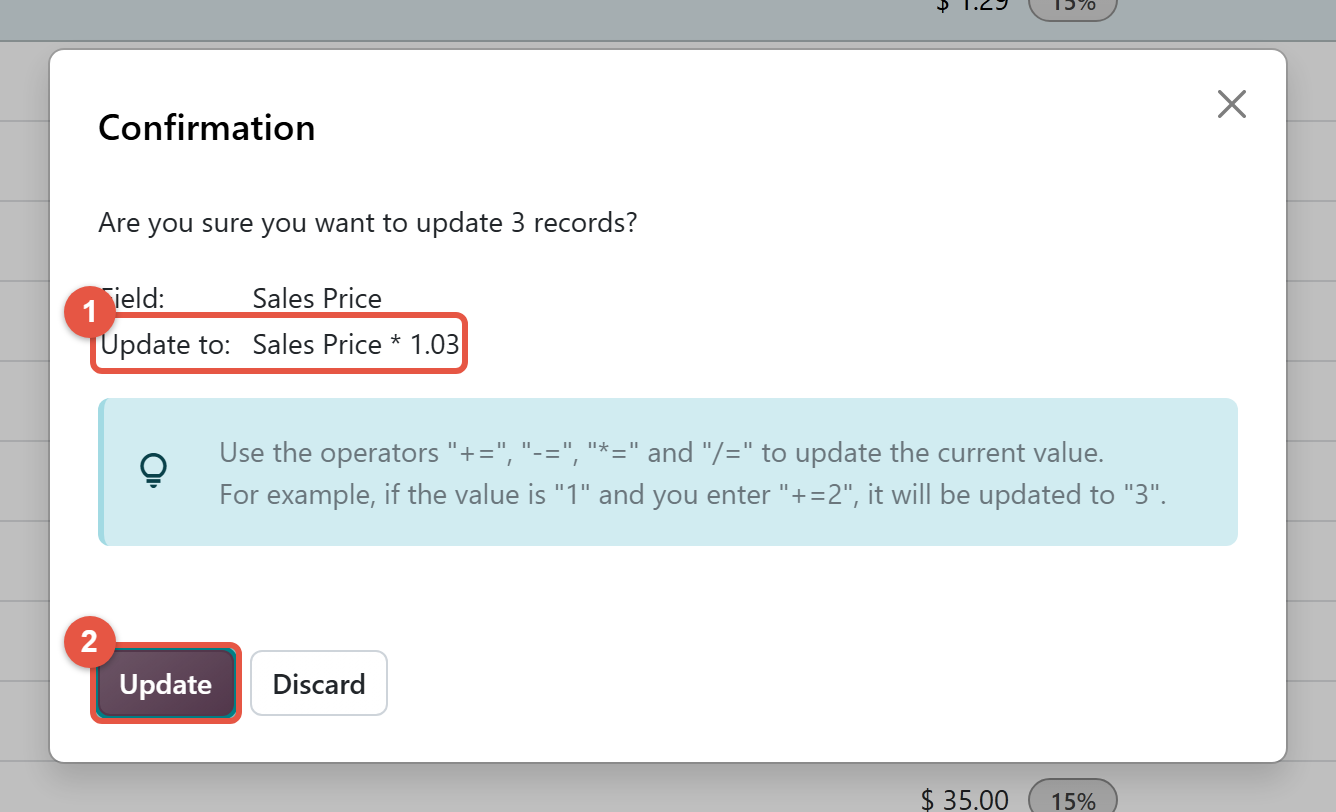
- A Confirmation window opens. It asks whether you want to update the number of records you ticked, and shows the Field and the Update to value.
- Click Update to apply the change to every ticked row, or Discard to cancel. Nothing changes until you click Update.
If some ticked rows cannot take the change, the window says how many of the selected records are valid for the update, and only those are changed.
Number fields also accept operators that work from each record's own value: +=, -=, *= and /=. Entering *=1.03 in Sales Price multiplies each ticked product's current price by 1.03, a 3 per cent increase. Date fields accept += and -= with a unit, such as +=2d to move each date two days later.
Export records to a spreadsheet
- Ticked rows only: click Actions > Export. The Export Data window opens for the ticked records. Choose the fields and the format, Excel or CSV, then click Export.
- Everything the search shows: untick all rows, open the three-dot menu next to the list title and click Export. Odoo downloads an Excel file of every record matching the search, with the columns currently visible.
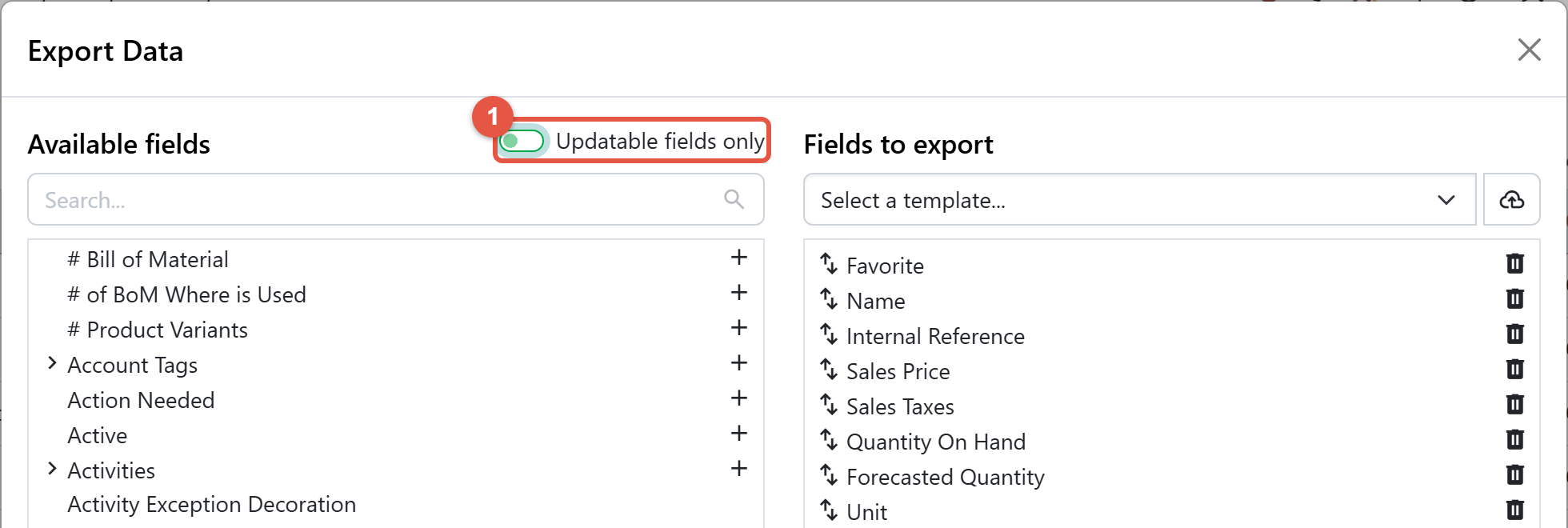
In the Export Data window, the Updatable fields only switch limits the field list to fields that can be imported back, and adds an External ID column to the file. Odoo's import uses that column to update the existing records rather than create new ones.
Archive or delete old records
To retire a product you will not sell again, tick it and click Actions > Archive, then confirm. Archived records drop out of lists, searches and selection drop-downs, but past orders, invoices and stock moves still point to them. To bring one back, choose Archived under Filters, tick the product and click Actions > Unarchive.
Delete removes a record permanently. Odoo refuses to delete a product that already appears on a sales order line, a purchase order line or an invoice line, which is one more reason to archive instead.
Check that it worked
After a bulk update, read the changed column on the rows you ticked; with *=1.03, a product priced 100.00 should now show 103.00. Open one product to confirm the value on its form. After archiving, the product is gone from the list and appears again when you choose the Archived filter.
Common mistakes to avoid
- Relying on Select all. After you tick the top-left checkbox, a Select all button offers to select every record matching the search. A bulk edit still applies only to the records on the current page, and the confirmation warns that "This update will only consider the records of the current page." A page holds 80 rows by default. Click the record range in the pager, such as 1-80, to type a larger range, or narrow the search, before editing.
- Forgetting the operator. Typing 1.03 without *= sets every ticked price to 1.03. Read the Update to line before clicking Update.
- Editing with the Sales filter on. Products that cannot be sold are hidden by that filter, so remove it before a catalogue-wide change.
- Re-importing a plain export. A file exported without Updatable fields only has no External ID column, so importing it again can create duplicates instead of updating records.
Steps verified on Odoo 20. Menus and labels can differ on other versions.
Common questions
How do I edit multiple records at once in Odoo?
In a list that supports it, such as Sales > Products > Products, tick the rows, change a value on one ticked row, and click Update in the confirmation window. Odoo applies the same value to every ticked record.
How do I increase prices by a percentage in Odoo?
Tick the products in the list, click the Sales Price cell on one of them and enter *=1.03 for a 3 per cent increase. Each product's own price is multiplied, and the confirmation shows Sales Price * 1.03 before you click Update.
Why did my Odoo bulk edit not change every record?
A bulk edit only applies to the records on the current page, even after Select all, and a page shows 80 rows by default. Enlarge the page range in the pager or narrow the search before editing.
Should I archive or delete a product in Odoo?
Archive it. Archived products disappear from lists and drop-downs, but past orders and invoices keep them, and you can unarchive them later. Odoo refuses to delete a product that already appears on sales, purchase or invoice lines.
Why is Export missing from the Odoo Actions menu?
Exporting is a separate access right. An administrator can set Export to Allowed in the Master Data section of the user's Access Rights tab, under Settings > Users & Companies > Users.
Talk to the team.
If you are setting this up, or Odoo is not behaving the way this guide describes, book a 30-minute call. We will look at your configuration and tell you what it needs. Calgary studio, in-house team, no offshore handoffs.
Book the call →