This guide shows how to use the search bar above an Odoo list to find one record quickly, filter the list down to what needs action, group the result, and save that combination so it opens the same way next time. The short answer: type in the search bar to search one field, open the toggle at the right end of the bar for the Filters, Group By and Favorites columns, and use Save search under Favorites to keep the view. The examples use customer invoices; the same search bar, with filters suited to each list, sits above lists across Odoo. The steps were verified on Odoo 20.
Before you start
- Version and edition: Odoo 20, Community or Enterprise.
- App: the examples use the Invoicing app. When Odoo Enterprise's Accounting app is installed, the same menus sit under Accounting instead.
- Access rights: the person needs an Accounting role on their user record (Settings > Users & Companies > Users, Access Rights tab). Without one, the invoice menus do not appear.
- Payment terms: the Overdue filter relies on each invoice's due date, which Odoo calculates from its payment terms. Set Payment Terms on the Sales & Purchase tab of each customer. Without them, the due date defaults to the invoice date.
- Terms used: a filter hides records that do not meet a condition, a grouping sorts the list into collapsible sections, and a favorite is a saved combination of both.
Find one record by typing
- Open the Invoicing app and go to Customers > Invoices. The list opens with a filter already applied, shown in the search bar as Invoices or Receipts. This menu also holds credit notes, and that filter hides them.
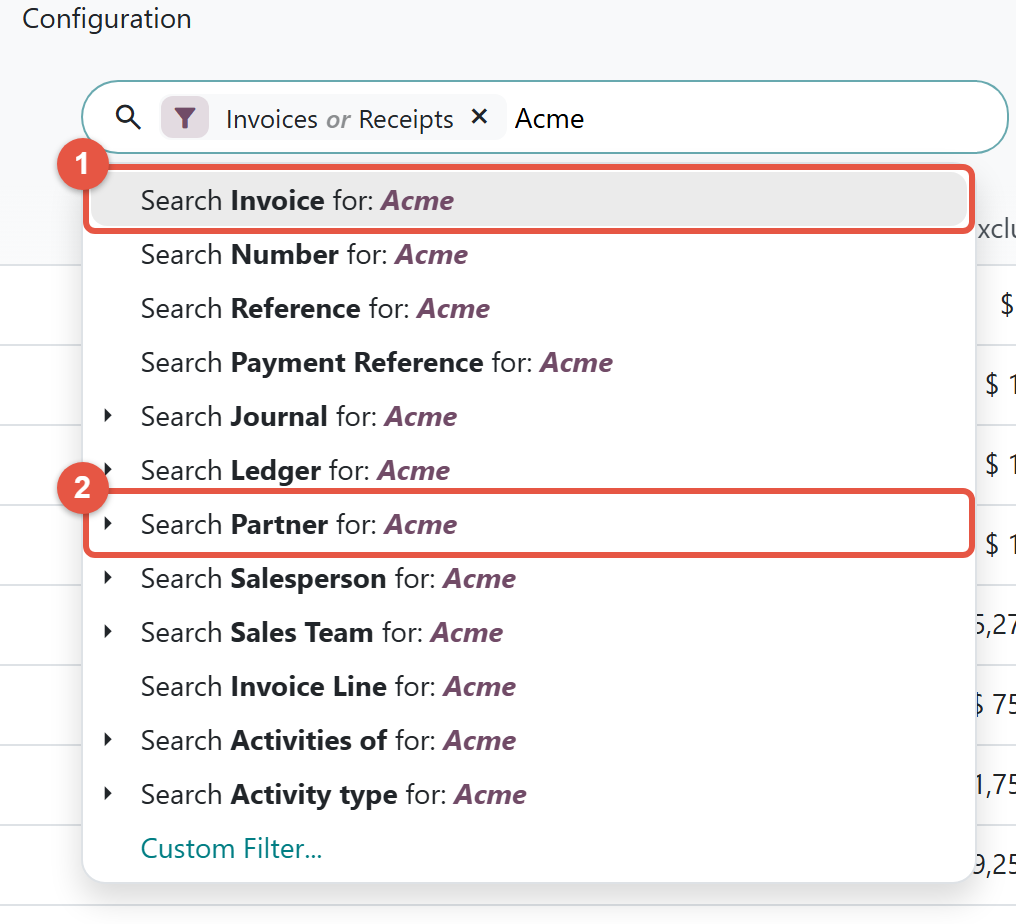
- Click in the search bar and type part of a customer's name. A drop-down opens with lines such as Search Invoice for: and Search Partner for:.
- Choose Search Partner for:. The list now shows invoices for every customer whose name contains that text, including invoices addressed to contacts filed under that company. Search Invoice for: instead looks in the invoice number, references and customer at once.
- To target one exact customer instead, click the small arrow at the left of the partner line and pick the customer from the list underneath.
Filter the list down to what matters
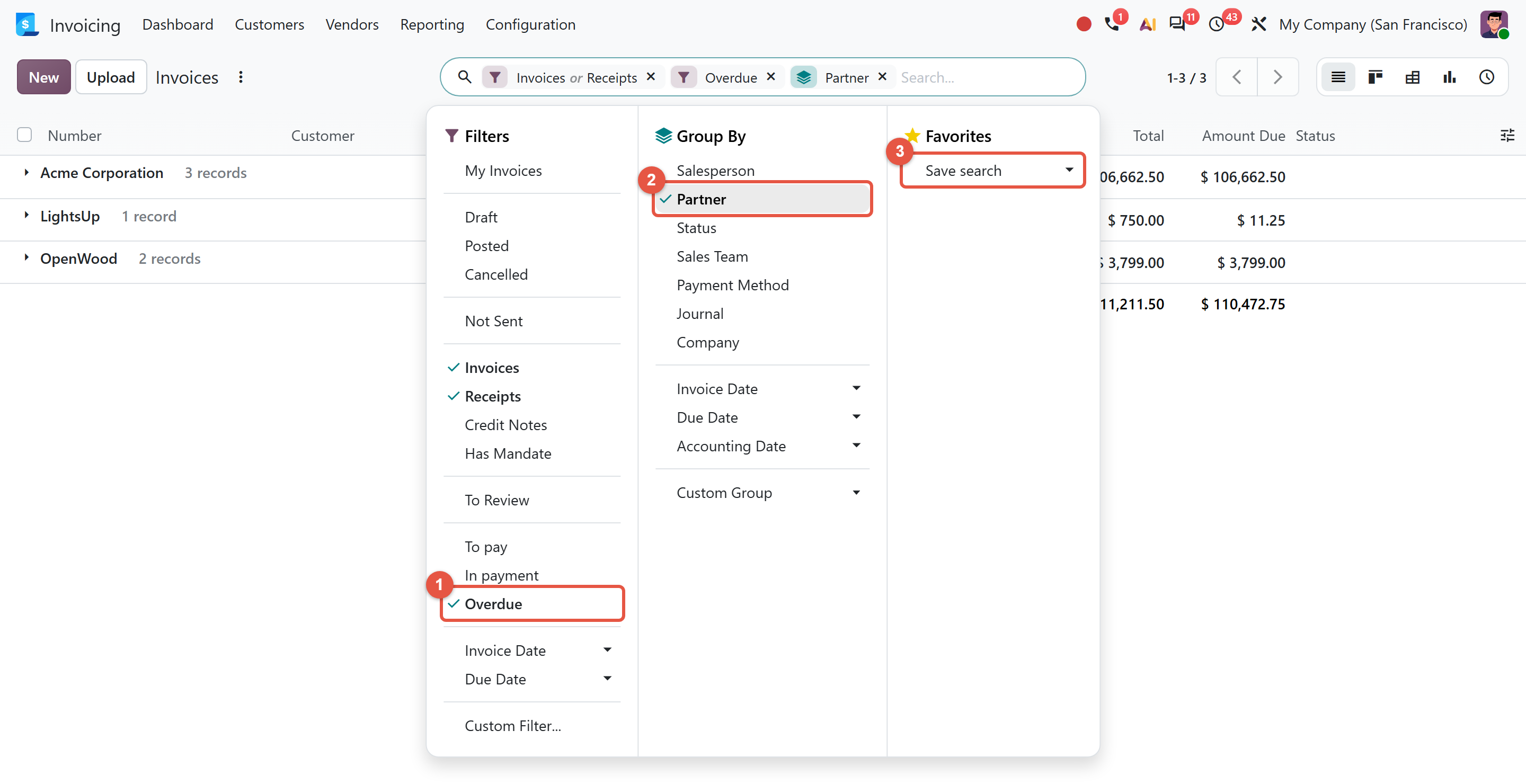
- Click the toggle at the right end of the search bar. Three columns open: Filters, Group By and Favorites.
- Under Filters, click Overdue. The list keeps only posted invoices that are unpaid or partly paid and whose due date has passed.
- To remove a filter, click the cross on its label in the search bar.
Horizontal lines split the Filters column into blocks, and the blocks decide how filters combine. Two filters from the same block widen the result, because a record only has to match one of them; that is why the default filter reads Invoices or Receipts. To pay, In payment and Overdue share another block. Filters from different blocks narrow the result, because a record must match all of them. When no preset filter fits, Custom Filter... at the bottom of the column builds your own rule.
Group the result into sections
Under Group By, click Partner. With Overdue still active, the list splits into one section per customer, holding only that customer's late invoices.
Groupings stack, and the order you click them sets the hierarchy: the first becomes the outer layer and each later one splits those sections further. Date groupings such as Due Date ask for an interval: Year, Quarter, Month, Week or Day. Clicking Due Date > Year and then Status shows each year divided by status; the reverse order gives status first. The Custom Group selector at the bottom of the column groups by fields that are not listed above it.
Save the view as a favorite
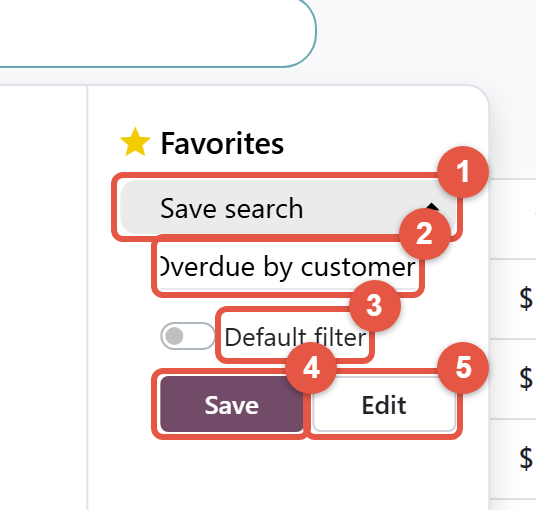
- Open the toggle and, under Favorites, click Save search. A name box opens with the menu's name; replace it with a clear name, such as Overdue by customer.
- Switch on Default filter if this view should load every time you open this menu.
- Click Save. The search bar now shows a single label with the favorite's name, and the favorite is listed under Favorites.
Share a favorite with your team
A new favorite is visible only to the person who saved it. To share it:
- Open the toggle, hover over the favorite's name under Favorites and click the pencil icon (Edit favorite). When creating a favorite, you can click Edit instead of Save to reach the same form.
- In the Shared with field, add the colleagues who should see it, or remove every name so the field reads All users.
- Save the form.
Shared favorites appear in a second section below your private ones. With more than four, only three show until someone clicks More....
Check that it worked
Go to another menu, such as Customers > Credit Notes, then return to Customers > Invoices. If you switched on Default filter, the list opens with your favorite's name in the search bar and the same sections as when you saved it. For a shared favorite, ask a colleague to look under Favorites on the same menu. Access rights can give them different records.
Common mistakes to avoid
- Expecting a favorite on every menu. A favorite belongs to the menu it was saved from, so one saved under Customers > Invoices does not appear under Credit Notes or Vendors > Bills.
- Reading Status as payment status. On invoices, the Status grouping splits records into Draft, Posted and Cancelled, not paid and unpaid. For payment, choose Payment Status under Custom Group. Overdue also ignores drafts, so an invoice that was never posted never appears there.
- Losing the menu's own filter. A default favorite replaces the filter the menu opens with, and keeps only what was active when you saved it. If you removed Invoices or Receipts first, credit notes appear in your view.
- Treating a shared favorite as locked. Any internal user can change or delete a favorite shared with all users, and a personal default favorite takes priority over a shared default.
- Trying to change groupings in the edit form. Groupings and sort order only appear there in developer mode, a setting that reveals technical options, so rebuilding the search and saving again is usually simpler.
Steps verified on Odoo 20. Menus and labels can differ on other versions.
Common questions
How do I save a search in Odoo?
Apply the filters and groupings you want, open the toggle at the right end of the search bar, and click Save search under Favorites. Enter a name, switch on Default filter if the view should open automatically on that menu, and click Save.
How do I share a saved search with other Odoo users?
Hover over the favorite under Favorites and click the pencil icon. In the Shared with field, add specific users, or leave it empty so it reads All users, then save. A new favorite is private until you do this.
Why do two Odoo filters sometimes show more records instead of fewer?
Filters in the same block of the Filters column combine with OR, so a record only has to match one of them. Filters from different blocks combine with AND, so a record must match all of them.
Does the order of Group By options matter in Odoo?
Yes. The first grouping you click becomes the outer level, and each later grouping splits those sections further. Click them in the opposite order to reverse the hierarchy.
Why does my saved favorite not appear on another menu?
A favorite is tied to the menu it was saved from. A favorite saved on Customers > Invoices does not appear on Credit Notes or Vendor Bills, so save one on each menu where you need it.
Talk to the team.
If you are setting this up, or Odoo is not behaving the way this guide describes, book a 30-minute call. We will look at your configuration and tell you what it needs. Calgary studio, in-house team, no offshore handoffs.
Book the call →