This guide sets up Odoo CRM for an organization split into groups that work independently, so each group sees and manages its own leads while managers see every group. The short answer: keep one company, create one Sales Team per group, give a team its own pipeline stages where its process differs, and edit one standard access rule. That last step is needed because none of Odoo's standard CRM access levels limits a person to their own team.
It is written for the person configuring CRM for the first time. The steps were checked in the Odoo 19 and Odoo 20 source code and tested on both versions. Where Odoo 20 differs, the step says so.
Before you start
- Version and edition: Odoo 19 or Odoo 20. CRM, Sales Teams and the access rules used here are part of both Community and Enterprise.
- Apps: CRM. If Sales is installed as well, read the last section, because quotations follow a similar rule.
- Access rights: the CRM Configuration menu needs the Sales level Administrator, and the Technical menu needs access to the Settings app.
- Developer mode: the Technical menu, and in Odoo 19 the Stages menu, only appear in developer mode, a setting that shows extra technical menus. Open the Settings app, scroll to the bottom and click Activate the developer mode.
- Terms: a lead or opportunity is CRM's record of a potential deal. A Sales Team is a group of users with its own pipeline, Team Leader and email address. The Salesperson is the user a lead is assigned to. A record rule is a filter Odoo applies behind the scenes to decide which records a group of users can see and change.
One company or several: where to draw the line
Multi-company, Odoo's feature for running several companies in one database, exists to keep data separate between legal entities. Groups inside one organization that only need separate pipelines do not need it. On Odoo's hosted plans, odoo.com states that adding a company moves the subscription to the Custom plan (checked 27 October 2026). Use Sales Teams instead: each team can have its own stages, its own inbound email address and its own pipeline view, while contacts, products and invoicing stay shared.
How the standard access levels actually behave
Each user has a Sales access level, set on the Access Rights tab of their user form, and CRM follows it:
- User: Own Documents Only: sees the leads where they are the Salesperson, plus every lead that has no Salesperson, in every team. A teammate's assigned lead is hidden, while another group's unassigned leads are visible.
- User: All Documents: sees every lead in every team.
- Administrator: everything in All Documents, plus the CRM Configuration menu. It is also the only level allowed to delete leads.
Being named a team's Team Leader does not change what a person sees. So no standard level means "my team only", and the rule change below closes that gap.
Set up teams, stages and team-only visibility
- Create one Sales Team per group. Open the CRM app and go to Configuration > Sales Teams. Click New, enter the team name, choose the Team Leader, add the group's people on the Members tab, and save. By default a person belongs to one team, so adding them to a second team removes them from the first, and Odoo shows a warning before it does. If someone really works in two groups, turn on Multi Teams under CRM > Configuration > Settings.
- Give each team an inbound address. On the same form, fill in Email Alias. Emails sent to that address create leads already assigned to the team.
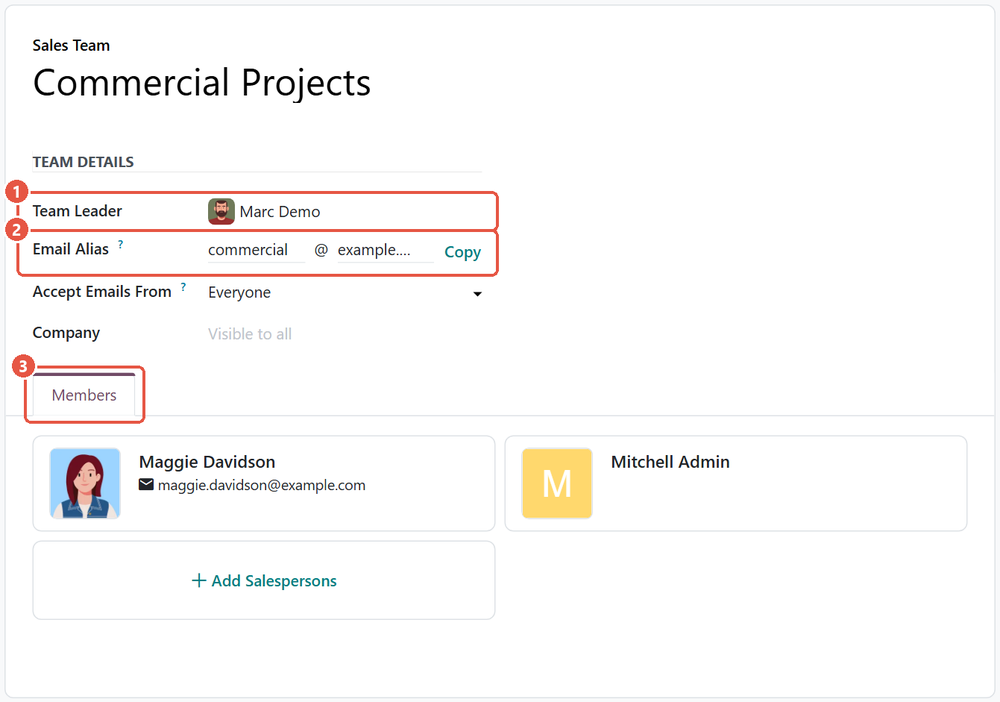
A Sales Team form in Odoo 20. 1: the Team Leader. 2: the Email Alias; emails sent to this address become leads assigned to the team. 3: the Members tab, where the group's people are added. - Add team-specific stages where processes differ. Go to CRM > Configuration > Pipeline > Stages and open or create a stage. The Sales Teams field appears once the database has more than one team. Leave it empty for a stage every team shares, or pick the teams that use it. In the pipeline, each person sees the shared stages plus their own team's stages.
- Edit the Personal Leads rule (Odoo 19). Go to Settings > Technical > Security > Record Rules and search for Personal Leads, the rule that applies to User: Own Documents Only. Open it and replace the text under Rule Definition (Domain Filter) with:
In plain words: show a lead if I am its Salesperson, or a member of its Sales Team, or that team's Team Leader. Save.['|', '|', ('user_id', '=', user.id), ('team_id.member_ids', 'in', [user.id]), ('team_id.user_id', '=', user.id)] - The same step in Odoo 20. Odoo 20 has no Record Rules menu: rules and access rights share one list under Settings > Technical > Security > Access Rights, and the standard entries cannot be edited directly. Open Personal Leads and click Customize. Odoo archives the standard entry and opens an editable copy called Personal Leads (copy). Paste the same text into its Domain field and save.
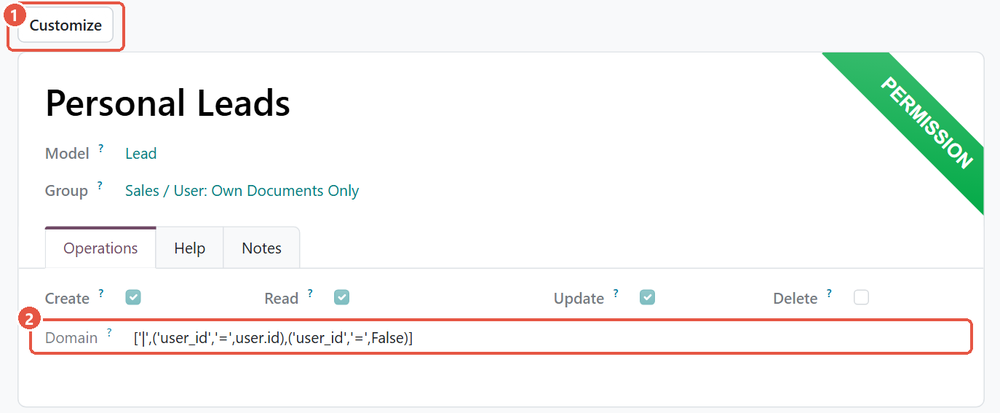
The standard Personal Leads entry under Settings > Technical > Security > Access Rights in Odoo 20. 1: Customize, which archives this entry and opens an editable copy. 2: the standard domain, which shows a user their own leads plus every lead with no Salesperson. 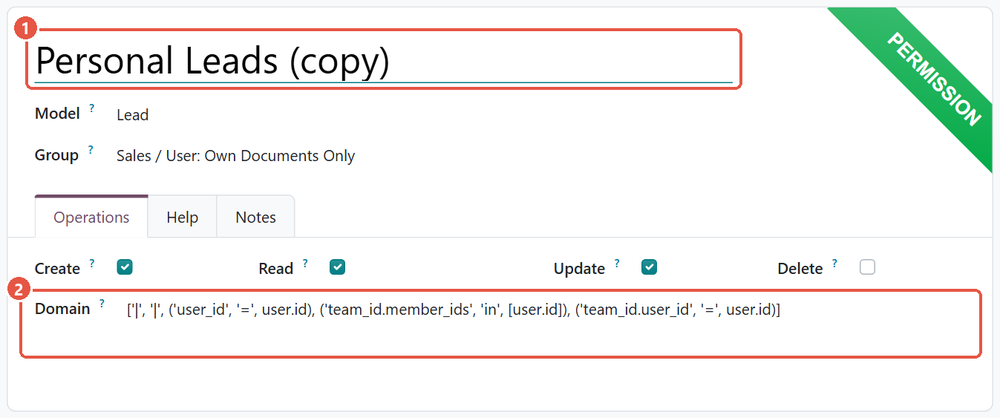
The editable copy that Customize opens. 1: Odoo names it Personal Leads (copy). 2: the Domain field with the team rule pasted in. Save to apply it. - Set each person's access level. Go to Settings > Users & Companies > Users, open each user, and on the Access Rights tab set Sales to User: Own Documents Only for group members, User: All Documents for managers and leadership who need every team, and Administrator only for whoever maintains the configuration.
Why edit the rule instead of adding a new one
When several rules apply to a user's access groups, Odoo shows a record if any one of them allows it. A separate team rule added next to Personal Leads would therefore leave every unassigned lead visible to everyone, because Personal Leads still allows them. Changing the existing rule is what removes that gap. In Odoo 19 this standard rule is protected from being reset when the CRM app is updated.
Odoo 20 also adds a team selector to the pipeline, with an All Teams option. It filters what is on screen but is not a permission, so the rule change is still needed for real separation.
Check that it worked
- Create two test users with Sales set to User: Own Documents Only, and put them in different teams.
- As an administrator, create four opportunities: one assigned to each test user, and one in each team with no Salesperson.
- Log in as the first test user and open CRM > Sales > My Pipeline. Remove the My Pipeline filter from the search bar, because it shows only the person's own deals.
- The user should see their own opportunity and their team's unassigned one, and nothing from the other team.
- Log in as a user with User: All Documents, open the pipeline, remove the same filter and group by Sales Team from the search options. Every team's opportunities appear.
Moving a person to another team changes what they see immediately, with nothing to recalculate.
Mistakes to avoid in the first setup
- Leads with no team and no Salesperson. After the change, such a lead is visible only to All Documents users, and an Own Documents user who tries to save one gets an access error. Give every entry point a team, for example with each team's Email Alias. A lead a person creates by hand is filled in with them as Salesperson and their team by default.
- Relying on the Team Leader field. On its own it grants no extra visibility. The edited rule is what gives a leader the team's leads.
- Forgetting reports and Sales documents. The CRM activities analysis has its own Personal Activities rule with the same own-or-unassigned pattern. If Sales is installed, quotations and orders (Personal Orders), order lines and invoice analysis follow it too. Each needs a matching change if groups must also be separated there.
- Using multi-company for internal groups. It separates far more than leads and changes the subscription plan.
- Testing as an administrator. Administrators and All Documents users see everything, so always test with an Own Documents user.
Steps verified on Odoo 19 and 20. Menus and labels can differ on other versions.
Common questions
Can Odoo CRM users see only their own team's leads?
Not with the standard access levels alone. User: Own Documents Only shows a person's own leads plus every unassigned lead in every team, so the standard Personal Leads rule has to be edited to include leads of the person's Sales Team.
What does User: Own Documents Only show in Odoo CRM?
It shows the leads where the user is the Salesperson and every lead that has no Salesperson, across all Sales Teams. Leads assigned to colleagues, even in the same team, are hidden.
Should I use multi-company or Sales Teams for separate groups in Odoo?
Use Sales Teams when the groups belong to one organization. Multi-company is meant to keep data separate between legal entities, and on Odoo's hosted plans adding a company moves the subscription to the Custom plan.
Does the Team Leader see all of the team's leads in Odoo CRM?
Not by default. The Team Leader field grants no extra visibility; a leader with User: Own Documents Only sees the team's leads only after the Personal Leads rule is edited to include the team leader.
Where are record rules in Odoo 20?
Odoo 20 has no Record Rules menu. Rules and access rights are listed together under Settings > Technical > Security > Access Rights in developer mode, and a standard entry is changed with its Customize button, which archives it and opens an editable copy.
Talk to the team.
If you are setting this up, or Odoo is not behaving the way this guide describes, book a 30-minute call. We will look at your configuration and tell you what it needs. Calgary studio, in-house team, no offshore handoffs.
Book the call →