This guide shows how to add a person to Odoo 20 and control what they can see and change. The short answer: open the Settings app, click Manage Users in the Users section, then click New. Enter the person's name and the email address they will sign in with, choose a Role on the Access Rights tab, and pick an access level for each app, such as Sales. When you save, Odoo emails the person an invitation to set up their login.
It is written for the owner or administrator who sets up the team, and was verified on Odoo 20.
Before you start
- Version: Odoo 20. The Role field and the per-app access levels are part of standard Odoo.
- Apps: install the apps your team will use first. The Access Rights tab only lists apps that are installed. Install the Employees app as well if you want employee records for your staff.
- Your own access: the Administrator role, which opens the Settings app where users are managed.
- Cost: adding internal users can change what you pay for your Odoo subscription, depending on your plan.
- Terms used: an access level is a predefined bundle of permissions for one app, picked from a drop-down instead of ticking individual rights. The role is the person's overall tier in the database: Light, User or Administrator.
Contact, employee or user: which one a person needs
Odoo can hold the same person in three places, and each one has a different job. A contact, in the Contacts app, is the identity that quotations, invoices, purchase orders and deliveries point to. Customers, vendors and your own staff all have one. An employee record, in the Employees app, holds HR information such as contracts, time off and timesheets. A user, managed from the Settings app, is the only one of the three that can sign in, and it carries the access rights.
A customer usually needs only a contact. A staff member needs a user, plus an employee record if you run HR processes in Odoo. For staff, start with the user, because Odoo builds the contact from it and can build the employee from it.
Create the user
- Open the Settings app. In the Users section, click Manage Users. The Users list opens, filtered to Internal Users.
- Click New.
- Enter the person's name. Below it, enter the email address they will sign in with. When the login is an email address, Odoo uses it as the user's email as well.
- Open the Access Rights tab and set the role and app levels described in the next two sections.
- Save. Odoo creates a matching contact, keeps the two linked, and sends the invitation to the email address. The person clicks the link in that email to set up their login.
The employee record is not created for you. With the Employees app installed, a Create employee button appears at the top of the saved user's form and builds the employee in one click. It only shows for internal users who do not have an employee record yet, and only to people with the Officer: Manage all employees level in Employees.
Choose a role
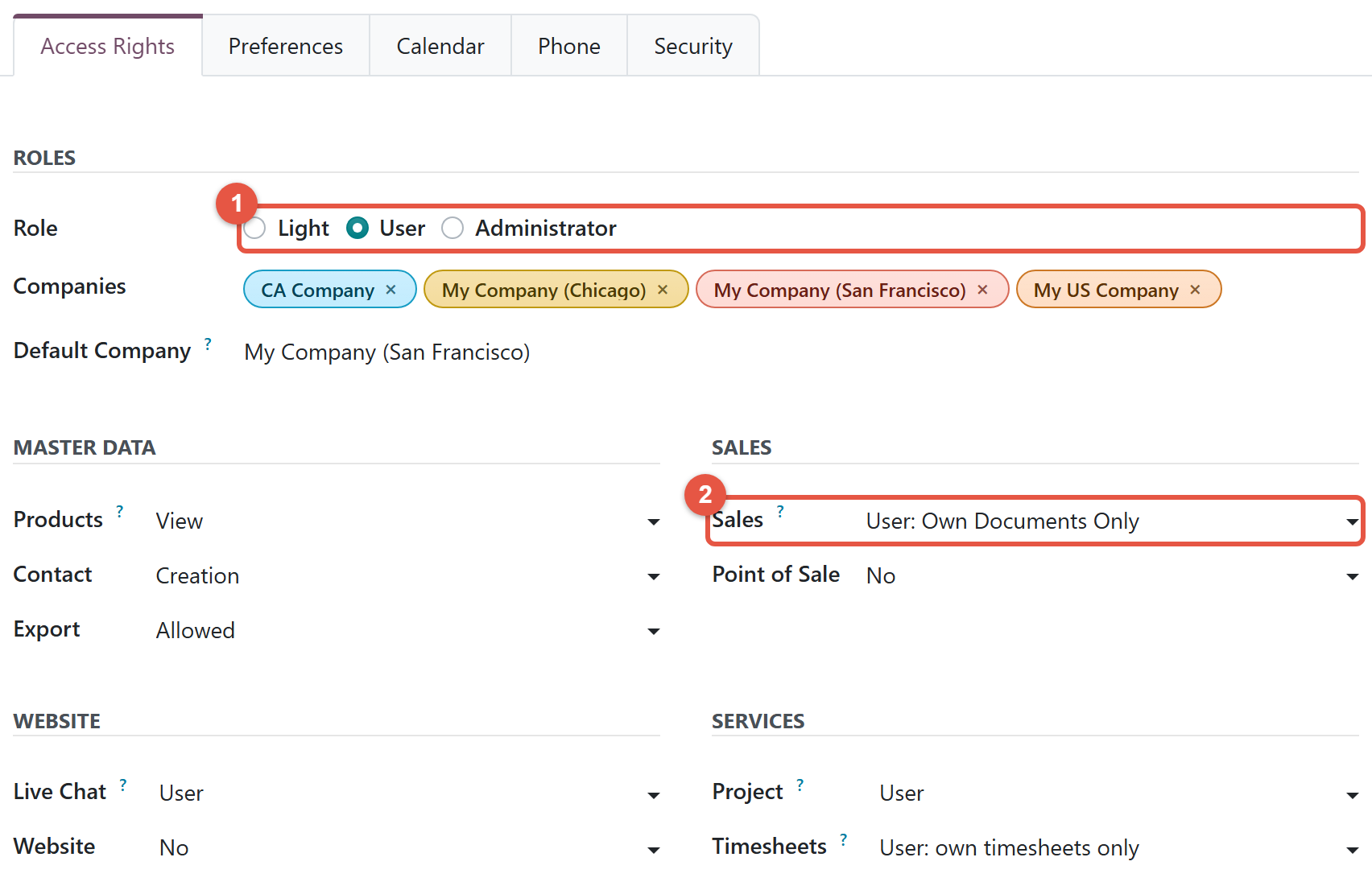
The Role field sits at the top of the Access Rights tab and has three options:
- Light: for people who only use self-service features, such as requesting their own time off or recording their own attendance. Switching someone to Light removes app access that Light does not allow.
- User: for people who work in apps such as Sales, Purchase or Accounting. The role follows the rights you grant, so once a person has a level in one of those apps, Odoo counts them as a User rather than Light.
- Administrator: gives access to the Settings app, where apps are configured and users are managed.
If your database has more than one company, the same section shows Companies and Default Company, which decide which companies the person can work in.
Set the access level for each app
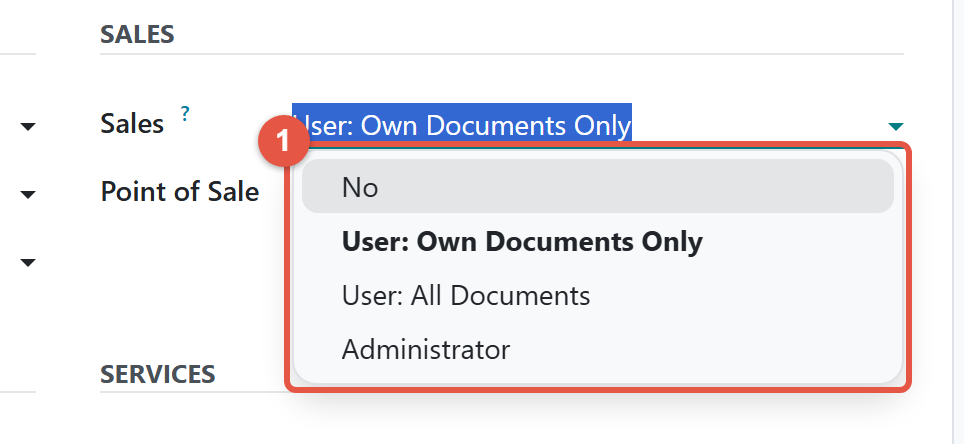
Below the role, the Access Rights tab lists every installed app with a drop-down of levels. Hover over the small question mark beside an app's name to see what each of its levels allows. Sales shows the pattern well:
- No: the person has no access, and the Sales app disappears from their home screen.
- User: Own Documents Only: they can create and work on their own quotations and orders.
- User: All Documents: they see and edit every salesperson's quotations and orders.
- Administrator: adds the Sales Reporting and Configuration menus.
Each level includes everything in the level before it. Other apps use their own level names, so read each app's help text.
New users start with the access set as the default for your database. To see or change it, open the Settings app, go to the Permissions section and click Default Access Rights. Check each new user's Access Rights tab before you save.
Portal users for customers and vendors
Internal users work inside Odoo. Portal users are outside people, such as customers or vendors, who sign in to view their own documents through the portal. The Users list hides them until you choose the Portal Users filter. To give a customer portal access, open them in the Contacts app and choose Grant portal access from the action menu. Portal rights are preset, so the Role field and the per-app levels are not offered for them.
Check that it worked
- Back in the Users list, find the person. The Role column shows Light, User or Administrator.
- Once the person has accepted the invitation, ask them to sign in. Apps they have no access to, such as Sales set to No, do not appear on their home screen.
- For someone on User: All Documents in Sales, open the Sales app with them. They see every order, and the Reporting and Configuration menus are absent.
When someone leaves, archive their user instead of deleting it: select them in the Users list, click the gear icon for actions and choose Archive.
Common mistakes to avoid
- Creating the contact before the user. Saving a user always creates a new contact, and the standard user form cannot attach an existing one, so you end up with two contacts for one person.
- Assuming Own Documents Only keeps other orders private. That level also shows any quotation or order whose Salesperson field is empty, and everyone on that level can edit them.
- Expecting sales analysis from User: All Documents. The Sales Reporting and Configuration menus need the Administrator level.
- Expecting salespeople to delete quotations. In standard Odoo, only the Sales Administrator level includes deleting quotations and orders.
- Reusing an email address. Odoo does not allow two users with the same login, so each person needs their own address.
Steps verified on Odoo 20. Menus and labels can differ on other versions.
Common questions
How do I add a new user in Odoo?
Open the Settings app, click Manage Users in the Users section, then click New. Enter the person's name and sign-in email, set their role and app access levels on the Access Rights tab, and save. Odoo emails them an invitation to set up their login.
What is the difference between the Light, User and Administrator roles in Odoo 20?
Light is for people who only use self-service features such as their own time off or attendance. User is for people who work in apps such as Sales, Purchase or Accounting, and Administrator adds access to the Settings app, where apps are configured and users are managed.
What can a salesperson see with User: Own Documents Only?
They can work on quotations and orders where they are the Salesperson, plus any quotation or order with no Salesperson set. Orders assigned to other salespeople stay hidden unless another app's access, such as Accounting, grants wider rights.
Why can a sales manager not see the Sales Reporting menu in Odoo?
The Reporting and Configuration menus in Sales are only available at the Administrator level. A person on User: All Documents sees every order but not those menus.
Does creating a user in Odoo also create an employee?
No. Saving a user creates a linked contact only. With the Employees app installed, an HR officer can click Create employee on the saved user's form to build the employee record.
Talk to the team.
If you are setting this up, or Odoo is not behaving the way this guide describes, book a 30-minute call. We will look at your configuration and tell you what it needs. Calgary studio, in-house team, no offshore handoffs.
Book the call →