This guide walks through the first settings in a new Odoo 20 database for a Canadian company: company details and tax numbers, the Canadian accounting package, users, languages, and the layout of your quotes and invoices. The short answer: everything starts in the Settings app, on the General Settings page, and the most important choice is the company's country. Set it to Canada before you install Invoicing or Accounting, so Odoo installs the Canadian chart of accounts and sales taxes for you. The guide is written for the owner or administrator setting up the database.
Before you start
- Version: Odoo 20. The settings and the Canadian accounting package described here are part of standard Odoo, in Community and Enterprise.
- Access rights: an administrator who can open the Settings app.
- Apps: Invoicing or Accounting, for the Canadian taxes, the PST Number field and the bank details on invoices.
- Have ready: your legal company name and address, GST/HST number, PST or QST number if you are registered, bank account number and logo file.
- Terms used: a fiscal localization is Odoo's package of chart of accounts, taxes and tax reports for one country. A fiscal position is a rule that swaps the taxes on a document, for example to charge the right sales tax for a customer in another province.
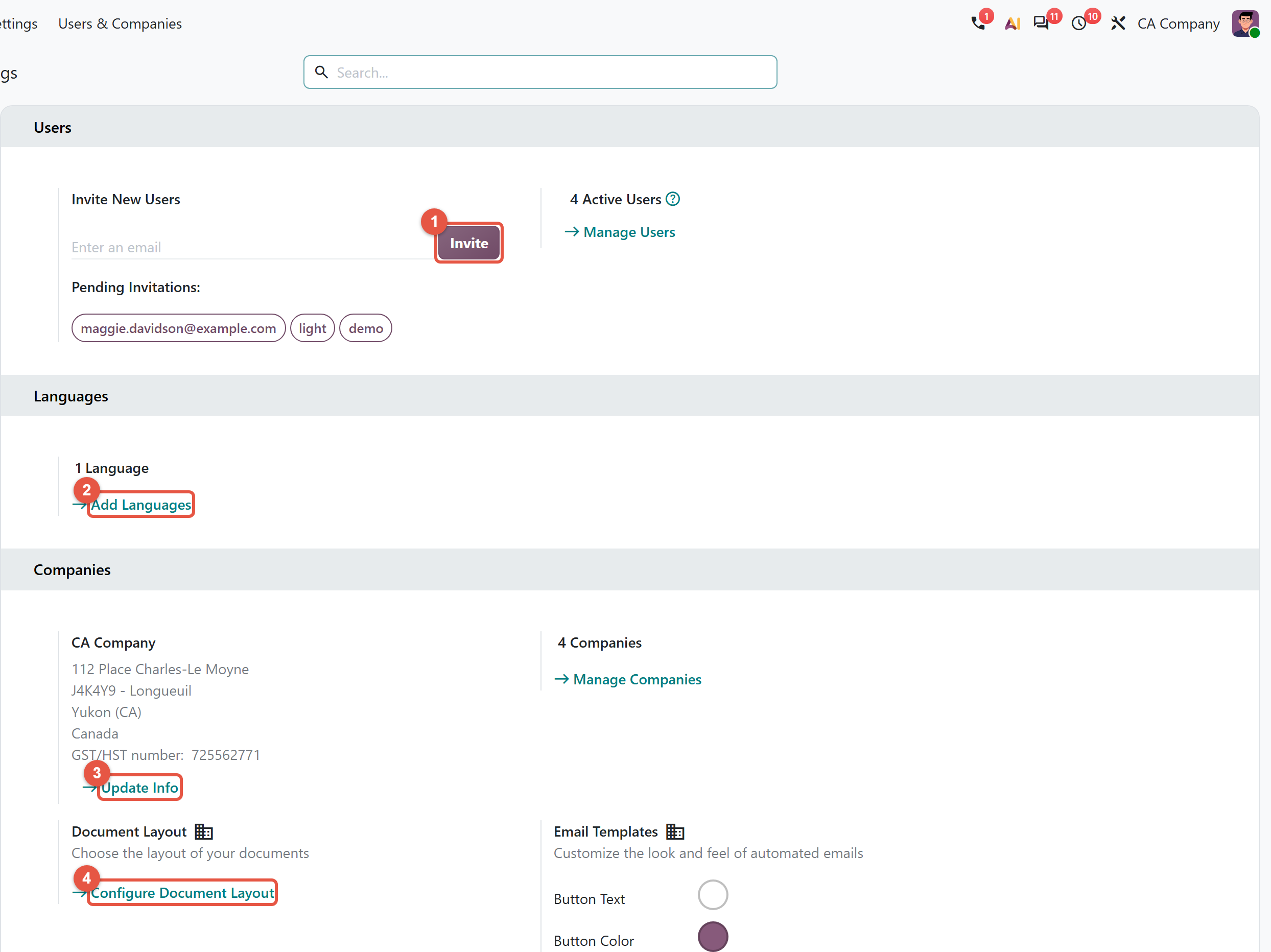
Enter your company details
- Open the Settings app. The General Settings page opens first.
- In the Companies section, click Update Info. The company form opens.
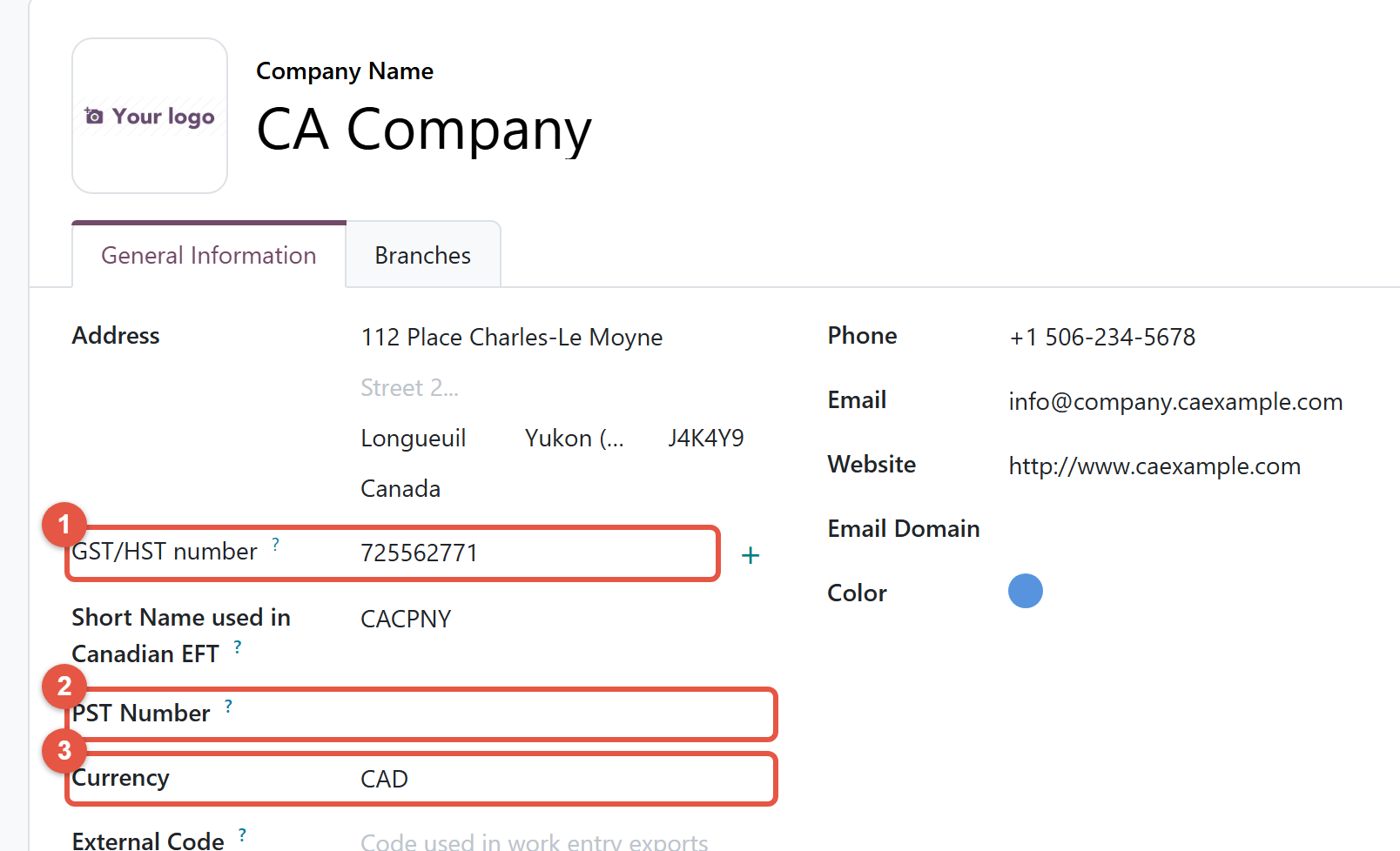
- Fill in the Company Name and the address, and set the country to Canada with your province. Choosing the country also fills Currency with that country's currency, so a Canadian company lands on CAD.
- Add the phone, email, website and logo. The logo is reused on every printed document.
- Enter your GST/HST number in the tax number field. The label of this field follows the country of the company you are working in, so once Canada is saved, it reads GST/HST number. If it still reads Tax ID, save and reopen the form.
- If Invoicing or Accounting is installed, a PST Number field also appears. It holds a provincial sales tax (PST) or Quebec sales tax (QST) registration number.
- Save.
Let Odoo install the Canadian package
The country you save drives the accounting setup. When a company gets its first country, Odoo installs that country's localization modules for the apps already installed. When Invoicing or Accounting is installed on a company with no chart of accounts yet, Odoo loads the chart for the company's country. For Canada, the package is called "Canada - Accounting" and brings:
- a Canadian chart of accounts;
- GST, HST, PST and QST sales taxes;
- a fiscal position for each province and territory, plus one for international partners, each set to apply automatically from the partner's address;
- a GST/HST Report.
To check which package is active, open the Invoicing app (Accounting, if installed), go to Configuration > Settings and look at Fiscal Localization.
Invite users and control their access
- In General Settings, find the Users section at the top.
- Type a colleague's email address in Invite New Users and click Invite. Odoo creates the user and emails an invitation to set a password. The address appears under Pending Invitations until they sign in.
- To adjust one person's access, click Manage Users and open their user record.
New users get basic employee access plus whatever you add under Default Access Rights, in the Permissions section of the same page. Review that template before you invite a whole team, so you are not correcting users one by one.
Send documents in your customer's language
- In the Languages section, click Add Languages.
- Choose the languages you need and click Add. French (CA) / Français (CA) is listed separately from French, which suits customers in Quebec.
- Open the customer's contact record and set Language. The field only appears once more than one language is active. Odoo's help text says emails and documents sent to the contact are translated into that language.
Odoo's standard wording comes translated, but product names are stored per language. A customer sees a French product name only once someone enters that translation.
Brand your quotes and invoices
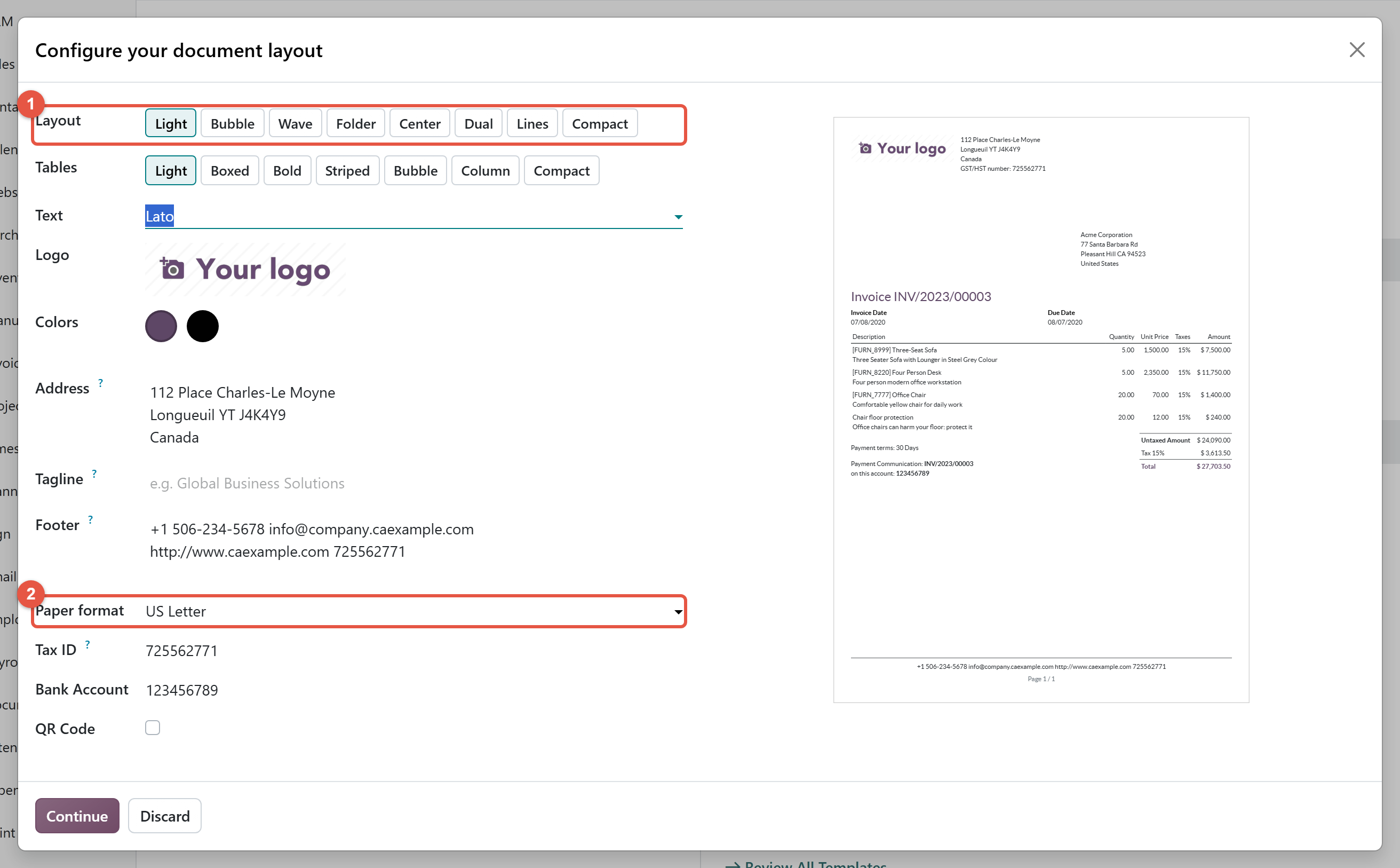
- Back in General Settings, in the Companies section, click Configure Document Layout. The "Configure your document layout" window opens with a live preview on the right.
- Choose a Layout (Light, Bubble, Wave, Folder, Center, Dual, Lines or Compact), a table style under Tables and a font under Text.
- Check Colors. Odoo reads a primary and a secondary colour from your logo, and you can click either circle to change it.
- Review Address, which comes from the company record, and add a Tagline or edit the Footer if you want.
- Set Paper format to the paper your office prints on, usually US Letter in Canada.
- With Invoicing installed, check the Tax ID and Bank Account shown on invoices.
- Click Continue to save.
Check that it worked
- Go back to General Settings. The Companies section shows your address and GST/HST number.
- Open the Invoicing app, go to Configuration > Taxes and confirm the GST, HST and provincial taxes are listed.
- Create a draft invoice for a test customer and print it. The PDF should show your logo, address, GST/HST number and footer, on the paper size you chose.
Common mistakes to check first
- Correcting the country after accounting is installed. Changing the country of a company that already has one does not swap the localization. The original chart of accounts stays, and you must choose the new package under Fiscal Localization yourself. That field becomes read-only once any journal entry exists.
- Changing the currency too late. Odoo refuses to change the company currency once journal items exist.
- Leaving invoices on A4. A new company's paper format defaults to A4, and the Canadian package does not change it. Set Paper format in Configure Document Layout.
- Ticking QR Code. If the layout window shows a QR Code box, leave it unticked. Odoo's invoice payment QR codes follow regional standards, such as SEPA in Europe, and none of them covers Canada.
Steps verified on Odoo 20. Menus and labels can differ on other versions.
Common questions
Where do I enter my GST/HST number in Odoo?
Open the Settings app, click Update Info in the Companies section and enter it in the tax number field. With Canada saved as the company's country, the field is labelled GST/HST number.
Does Odoo install Canadian taxes automatically?
Yes, when the company's country is Canada. Installing Invoicing or Accounting on a company with no chart of accounts loads the Canada - Accounting package, with GST, HST, PST and QST taxes and a fiscal position for each province and territory.
Why are my Odoo invoices printing on A4 paper in Canada?
A new company's paper format defaults to A4, and the Canadian accounting package does not change it. In Settings, click Configure Document Layout and set Paper format to US Letter.
Can I change the country or currency of my Odoo company later?
Changing the country later does not replace the accounting package, and the Fiscal Localization setting becomes read-only once journal entries exist. Odoo also refuses to change the company currency once journal items exist, so set both before the first transaction.
Can Odoo send invoices to Quebec customers in French?
Yes. Add French (CA) under Add Languages in General Settings, then set Language on the customer's contact. Odoo's standard wording is translated, but product names need a French translation entered.
Talk to the team.
If you are setting this up, or Odoo is not behaving the way this guide describes, book a 30-minute call. We will look at your configuration and tell you what it needs. Calgary studio, in-house team, no offshore handoffs.
Book the call →