This guide explains who Send message and Log note notify in Odoo 20. Business records in Odoo, such as a sales order, an invoice or a contact, have a chatter: the panel of messages, notes and change history next to the form. The short answer: Send message goes to the people in its To line, usually the customer, and to the record's followers. Log note is internal: only internal users can see it, and by default it notifies only the colleagues you tag with @. It is written for everyday Odoo users and the administrator who sets them up.
Before you start
- Version: Odoo 20. The chatter is part of standard Odoo, in Community and Enterprise.
- Email: Odoo Online databases include a ready-to-use email server. A self-hosted database needs its own: open the Settings app, find the Emails section and tick Use Custom Email Servers. Without a server, Send message cannot reach anyone's mailbox.
- Users: anyone you want to tag in a note needs an internal user account.
- Terms used: a follower is a person subscribed to a record, who receives its updates. An internal user is someone who works inside Odoo, as opposed to a portal user, such as a customer who only sees their own documents online. A role is a named group of users that you can tag in one go.
The three buttons in the chatter
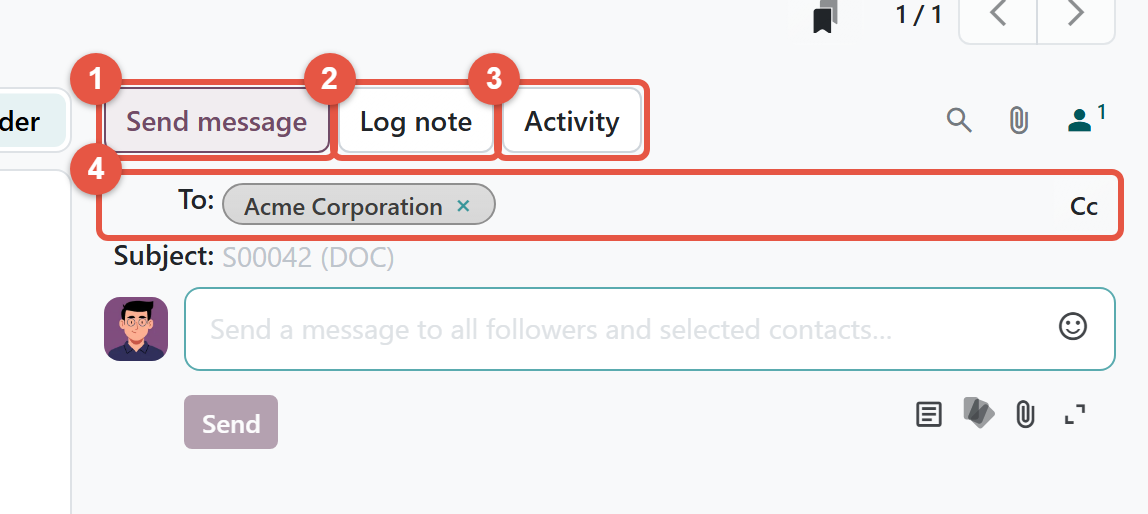
The chatter has three buttons at the top. Send message writes to the customer and followers, Log note writes an internal comment, and Activity schedules a follow-up, such as a call, with a due date and an assigned colleague or role. An activity is a task, not a message.
Who receives Send message
When you click Send message, the To line arrives already filled in. Odoo suggests the record's customer as a recipient, so on a sales order the customer's name is there before you type. Other followers appear in the same line as one badge, such as "2 Followers". It counts the followers subscribed to messages, not including you; point at it to see their names.
Everyone in the To line receives the message, along with anyone you add in To or Cc. If you remove the customer and no other recipient is listed, the line shows the text "Followers only". The message then still goes to every follower subscribed to messages. Odoo does not send you a copy of your own message, even when you follow the record.
To send a message:
- Open the record, for example a sales order.
- In the chatter, click Send message. The To line shows the customer, plus a followers badge if other people follow the record.
- Check the To line. Click the cross on a name to remove it, or type a name to add one. Click Cc for copy recipients.
- Write your message and click Send. The message appears in the chatter, with your email signature added to the email.
The expand icon at the bottom right of the box opens the full composer, where you can apply an email template or pick a later send time. Once a time is set, the Send button becomes Schedule.
Who sees a Log note
A log note is visible to internal users only. Customers and other portal users cannot see it. It also notifies fewer people than you might expect: new followers are not subscribed to notes by default, so a note nobody is tagged in usually notifies no one. To bring a colleague in, tag them.
- In the chatter, click Log note. The box reads "Log an internal note...".
- Type @ and the first letters of a colleague's name. The list offers internal users only, plus roles marked "Notify users with this role".
- Choose the person or role, write the note and click Log. The tagged people are notified by email or inside Odoo, depending on their own preference.
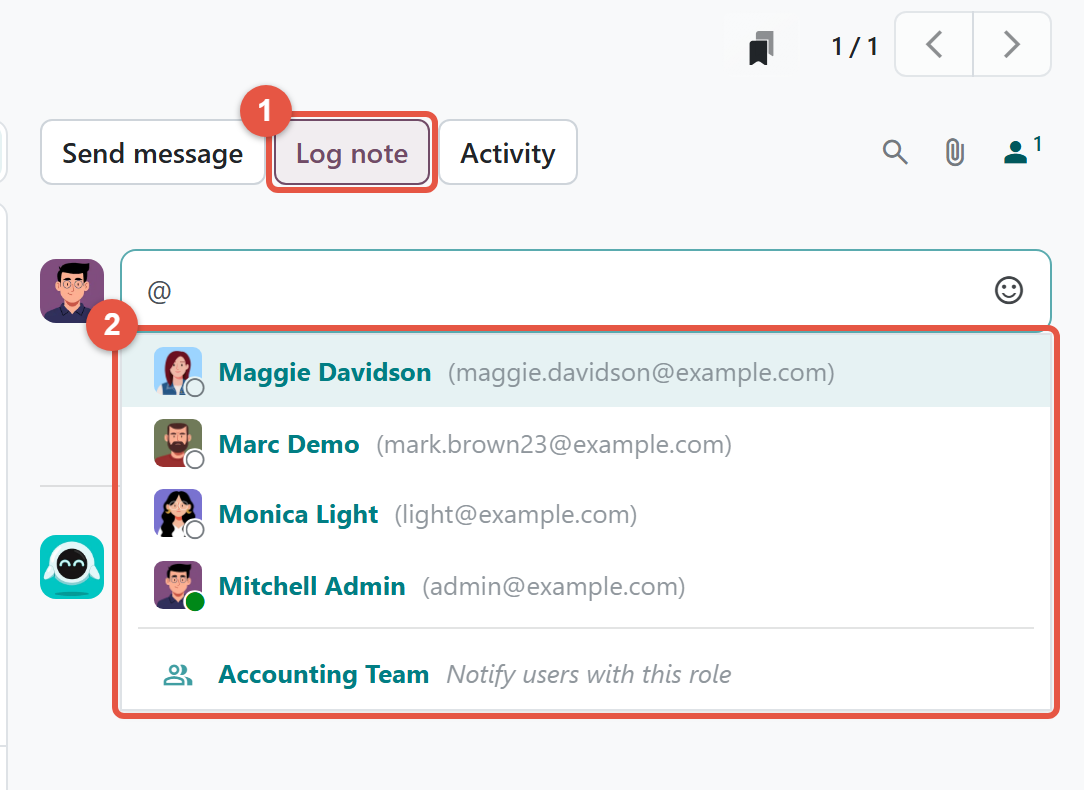
You cannot tag a customer contact in a log note. To bring an outside contact in, use Send message, where the @ list includes contacts. A tag in Send message adds a recipient; it does not narrow the audience, because the followers still receive the message.
How followers decide who hears about a record
The person icon with a number, at the top right of the chatter, opens the followers list. From there you can follow or unfollow the record, or click Add Followers. The Add Followers window has a Notify Recipients switch, off by default, for telling new followers they were added. Next to each follower, the Edit Notification Preferences button opens the update types that person receives, such as Messages and Notes. Ticking Notes for a follower means they receive every note on that record, tagged or not.
Choose where your notifications arrive
Each user decides whether messages and tags reach them by email or inside Odoo.
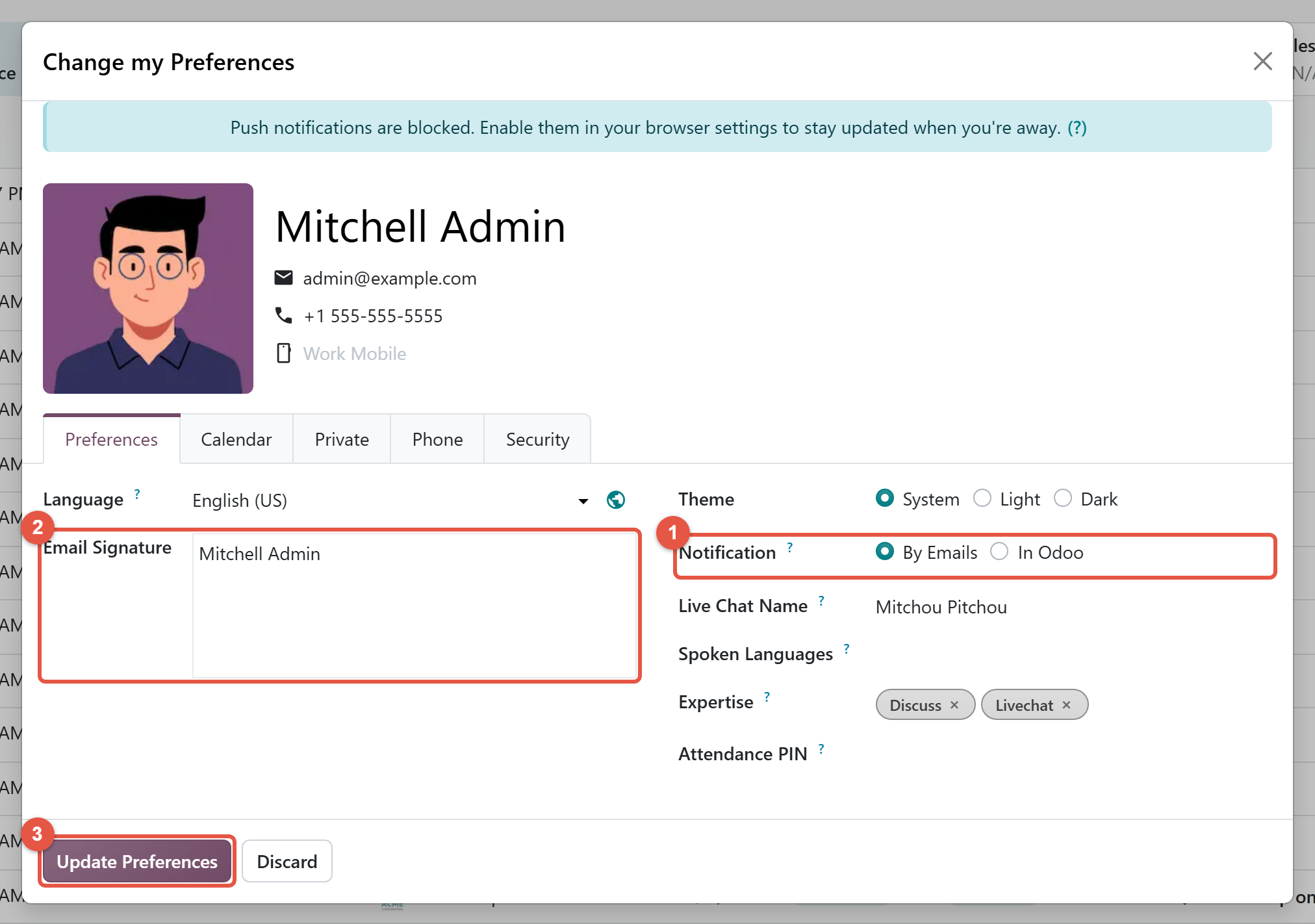
- Click your profile picture at the top right of the screen and choose My Preferences. The Change My Preferences window opens on the Preferences tab.
- Under Notification, choose By Emails or In Odoo. By Emails, the default for new users, sends notifications to your mailbox. In Odoo keeps them in the messaging menu, the chat icon in the top bar.
- Fill in Email Signature if it is empty. Odoo adds it to the emails you send from the chatter.
- Click Update Preferences.
Customers always receive notifications by email, because In Odoo is limited to internal users.
Check that it worked
- On a test record, log a note that tags a colleague. Ask them to confirm it arrived in their mailbox or in their messaging menu, whichever their Notification setting says.
- Send a message to a contact whose email address you control. Then click the small envelope icon beside the message in the chatter. It lists who received it and the delivery status of each email. A red icon means a delivery failed.
Common mistakes to avoid
- Writing an internal comment in Send message. The customer is already in the To line, and removing them still leaves every follower as a recipient. For a comment meant only for your team, click Log note before you type.
- Logging a note without tagging anyone. Followers are not subscribed to notes by default, so an untagged note sits quietly on the record. Tag the person you need.
- Trying to tag a customer in a note. The note list only offers internal users and roles. Use Send message to reach an outside contact.
Steps verified on Odoo 20. Menus and labels can differ on other versions.
Common questions
What is the difference between Send message and Log note in Odoo?
Send message goes to the recipients in its To line, usually the customer, and to the record's followers. Log note is an internal comment that only internal users can see, and by default it notifies only the people you tag with @.
Can a customer see a log note in Odoo?
No. Notes are marked internal, so customers and other portal users cannot see them, including on their portal.
Why did nobody get notified about my log note in Odoo?
New followers are not subscribed to notes by default, so a note that tags nobody usually notifies no one. Tag colleagues with @, or tick Notes in a follower's notification preferences.
Can I tag a customer contact in an Odoo 20 log note?
No. In Odoo 20 the @ list in a log note offers internal users and roles only. Use Send message, where the @ list includes contacts, to bring an outside person into the conversation.
How do I get Odoo notifications inside Odoo instead of by email?
Click your profile picture, choose My Preferences, set Notification to In Odoo and click Update Preferences. Notifications then appear in the messaging menu in the top bar instead of your mailbox.
Talk to the team.
If you are setting this up, or Odoo is not behaving the way this guide describes, book a 30-minute call. We will look at your configuration and tell you what it needs. Calgary studio, in-house team, no offshore handoffs.
Book the call →